GPT-6 Astra represents a major step forward for AI agents that can operate a computer and browser. Instead of only producing text, code, or recommendations, it can work through applications, interact with websites, click through interfaces, and complete multi-step tasks.
I tested it across six very different examples. Some were serious business workflows. Others were simply useful stress tests. I wanted to see how well Astra could work across real software, how long the work took, and where computer use makes sense compared with APIs, command line tools, and direct integrations.
The main takeaway is simple: computer use can fill in the gaps between the tools that businesses already rely on. It can work with applications that have poor integrations, complex user interfaces, or workflows that still require a person to manually move between tabs.
What Computer Use Actually Changes
Most AI automations have historically depended on structured access. That might mean an API, an MCP server, a command line interface, or a dedicated integration. Those options are usually faster and cheaper than moving a mouse around a screen.
However, plenty of useful software doesn’t offer the access needed to automate a job from start to finish. An accounting platform might have an API but lack the endpoints needed for reconciliation. A design tool might support some actions programmatically but make small in-progress edits awkward. A desktop program may not offer a usable integration at all.
Computer use fills that gap. Astra can inspect what is on screen, choose an action, click, type, switch applications, and continue from the result. It can also use tools behind the scenes where that is the more efficient route.
That distinction matters. The goal isn’t to make an AI click every button just because it can. The goal is to get a job done using the best available method.
1. Editing Video B-Roll in DaVinci Resolve
The first task I gave Astra was one I’m already using in my own work: adding B-roll to a talking-head video.
The starting point was a talking-head segment at the beginning of a video. It needed more movement and visual interest, but the B-roll needed to stay relevant and not become distracting. I asked Astra to open DaVinci Resolve, find suitable B-roll online, record it, and add it in the right places on the timeline.
Inside ChatGPT or Codex, I explicitly called the computer-use capability by starting the prompt with @computer. I then gave Astra a fairly short instruction. It received permission prompts to use DaVinci Resolve and Google Chrome, then began switching between the browser and video editor.
From there, it handled the kind of repetitive work that tends to slow editing down:
- Searching for relevant source material online
- Opening websites and dismissing cookie pop-ups
- Expanding pages and full-screening content where needed
- Adjusting framing so the recorded clips worked in the edit
- Recording the B-roll clips
- Adding the clips to the DaVinci Resolve timeline
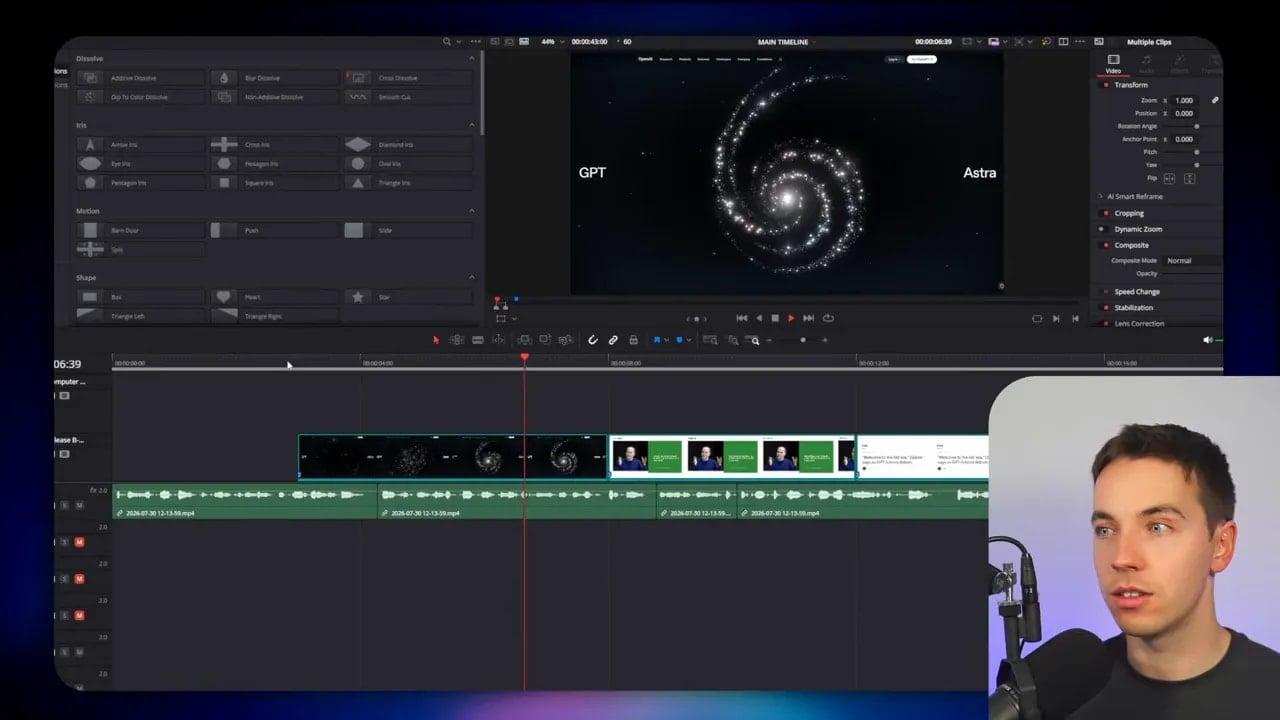
I ran this job in extra high effort mode, without fast mode. Astra reported 31 minutes of work, although the actual elapsed time was closer to 20 minutes because it waited for my approval at the beginning and performed additional recording work for the demonstration.
The result was genuinely useful. It placed relevant clips into the timeline and included some subtle movement. I would likely speed up some of the overlays on a later pass, but that is a prompt-quality issue rather than a failure of the underlying workflow.
In a manual process, I would need to locate sources, frame the content, create the clips, return to DaVinci Resolve, and arrange the footage. Astra handled the full chain. The workflow can be faster still when the required B-roll already exists on the computer, because it doesn’t need to search and record external material first.
This is one of the best examples of computer use working as a practical assistant. It can take over the repetitive production steps while I stay responsible for the creative direction.
2. Playing Piano With Mouse Clicks
I also wanted to test something more unusual: sequence, timing, and cursor precision.
I asked Astra to open an online piano and play the first few bars of a classical piece. There was one intentional limitation: it could only use the mouse. It couldn’t use the keyboard.
The task took around four minutes of preparation. Then it played the sequence of notes through clicks on the virtual piano keys.
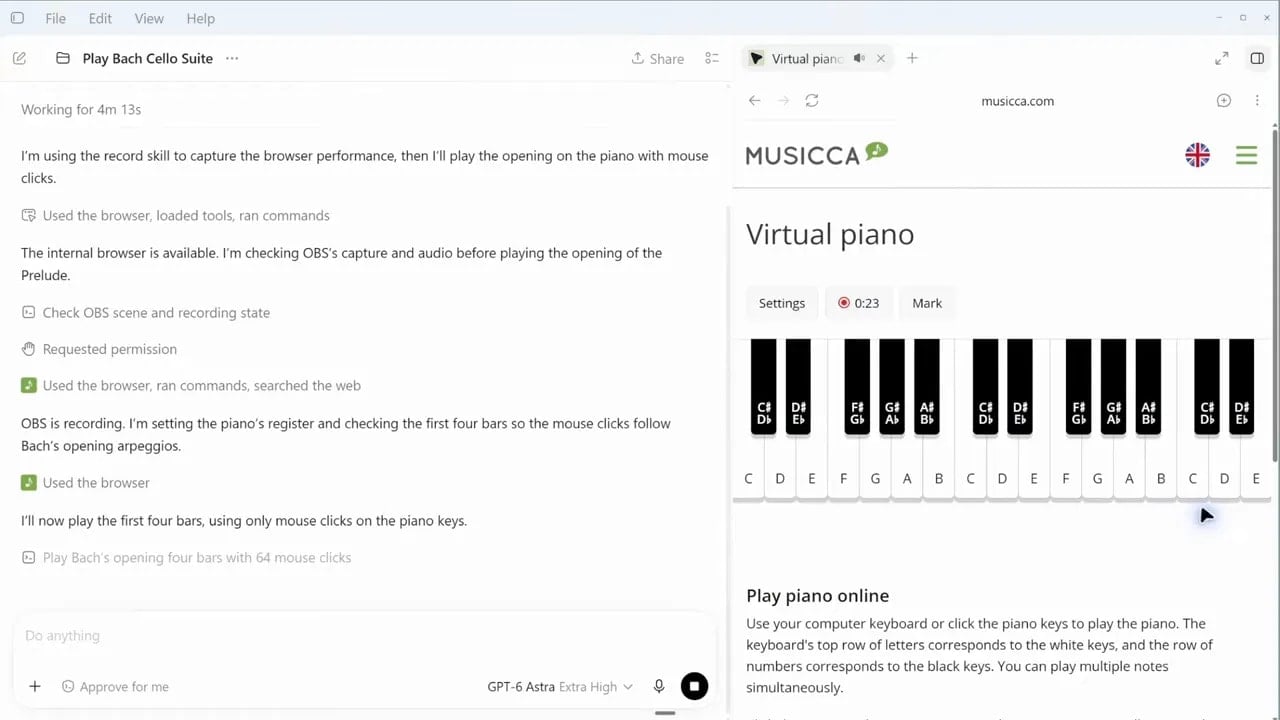
What made this impressive was the likely approach behind it. An AI model cannot realistically pause after every individual note, reason from scratch, and then decide on the next click. That would be far too slow. Instead, Astra appeared to create a script or another compact method for performing the sequence efficiently.
This helps explain why computer-use agents can sometimes complete many actions in rapid succession. The model may reason about the task, build a more efficient plan, and then execute that plan rather than treating every single click as a separate long reasoning cycle.
The piano example is not a business automation, obviously. Still, it tests an important capability. If an agent can reliably plan and execute a timed visual sequence, it can apply similar principles to many repetitive interface tasks.
3. Reconciling Bookkeeping Transactions
Bookkeeping is a far more practical test case.
I asked Astra to use existing Chrome tabs and reconcile transactions that clearly matched invoices or bills. The accounting software in this example was Xero, which is widely used but can have limited integration options for specific reconciliation workflows.
Month-end reconciliation can consume a lot of time. Even where software provides an API, it may not expose everything needed to match transactions, handle exceptions, and complete the job in the way an accountant would through the interface.
Astra began by inspecting the unreconciled transactions and looking for matches among invoices and bills. It then took action on clear matches. In one case, it found two potential invoices. In another, it identified a part-payment situation and split the payment against the invoice.
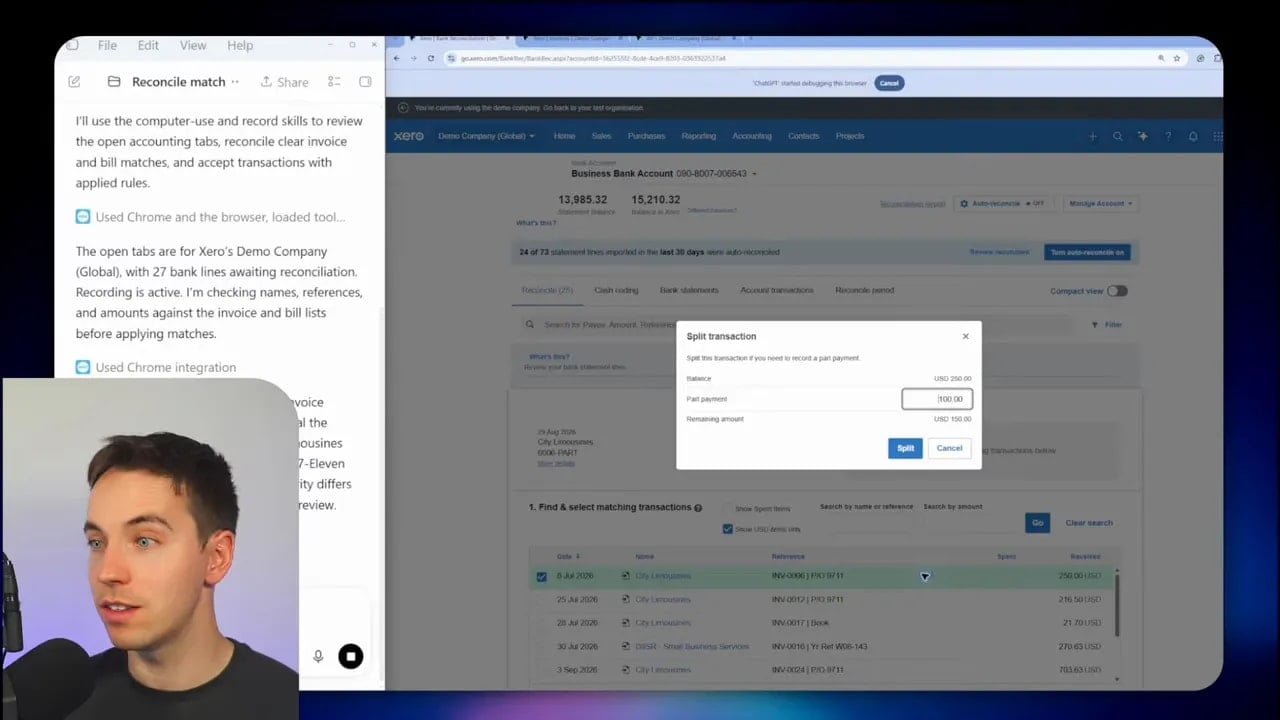
After about ten minutes, Astra had reconciled seven transactions. That included searching through invoices and bills, matching entries, splitting an invoice payment when needed, and moving onto the next item.
That speed is good enough for many background workflows. A task doesn’t always need to finish as quickly as possible. If the agent can work accurately while I focus on higher-value tasks, that can be a better trade-off than burning through extra usage to shave off a few minutes.
Fast mode can complete the work roughly twice as quickly, but it uses more allowance. For routine bookkeeping, I would often prefer to let it continue at a standard pace on a separate machine while I do something else.
Start With Clear Matches and Keep Human Control
Accounting work deserves extra care. A useful approach is to limit the agent’s authority to transactions that clearly match. Exceptions, unclear vendors, unusual tax treatment, and anything with uncertain documentation should remain for human review.
Computer use can remove repetitive matching work. It shouldn’t become an excuse to approve uncertain financial records without checking them.
Turn a Successful Task Into a Reusable Skill
One of the most useful features of this workflow is that an agent can turn a completed task into a reusable skill.
The original bookkeeping prompt was deliberately high-level. I didn’t give Astra a detailed operating manual. I simply told it to find obvious matches and reconcile them. Once it had worked through the task, I could ask it to create a reusable skill for that process.
For example, I could prompt:
Create a reusable skill within this project for this task. Call the skill reconcile accounts.
The reusable skill acts like a detailed internal procedure. It captures the steps, choices, scripts, and operating instructions that helped Astra complete the job. Next month, I can open a fresh session and call the skill by name rather than starting from zero.
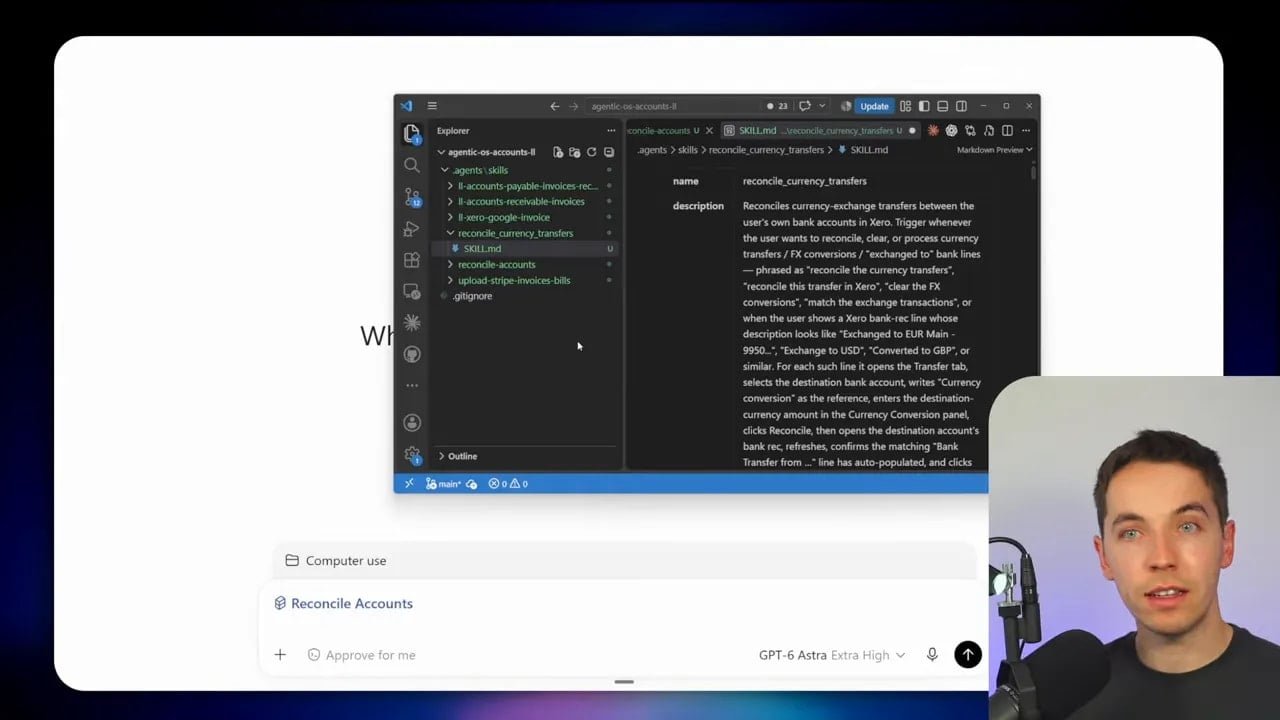
This changes the economics of automation. A high-capability model can work out a difficult process once. After that, a cheaper model may be able to repeat it because it has a clear blueprint.
That reusable skill might include:
- Where to find the relevant records
- How to identify likely matches
- How to handle a split payment
- Which actions require a confirmation step
- Any scripts or shortcuts that make the process faster
- How to recognize common interface states
Astra may understand how to work through a website, create scripts, and document the process. A lower-cost model, such as GPT-5.6 Terra in this example, can then follow those instructions without spending as much effort figuring out the workflow for itself.
This is a useful pattern for many business processes. Use the strongest model to solve a new or difficult task. Convert the outcome into a repeatable skill. Then assign repeat runs to a less expensive model where appropriate.
4. Creating a 3D Logo in Blender
Computer use is also valuable for software I don’t personally know how to operate.
I asked Astra to create a 3D model of the AI Automators logo in Blender. The important point here was not just that it opened Blender and clicked through menus. It used a much more efficient route.
After working for a few minutes, Astra had created its own .blend file, which is Blender’s project file format. It then imported that file into Blender, adjusted a few settings in the interface, added shading, and produced a rendered output.
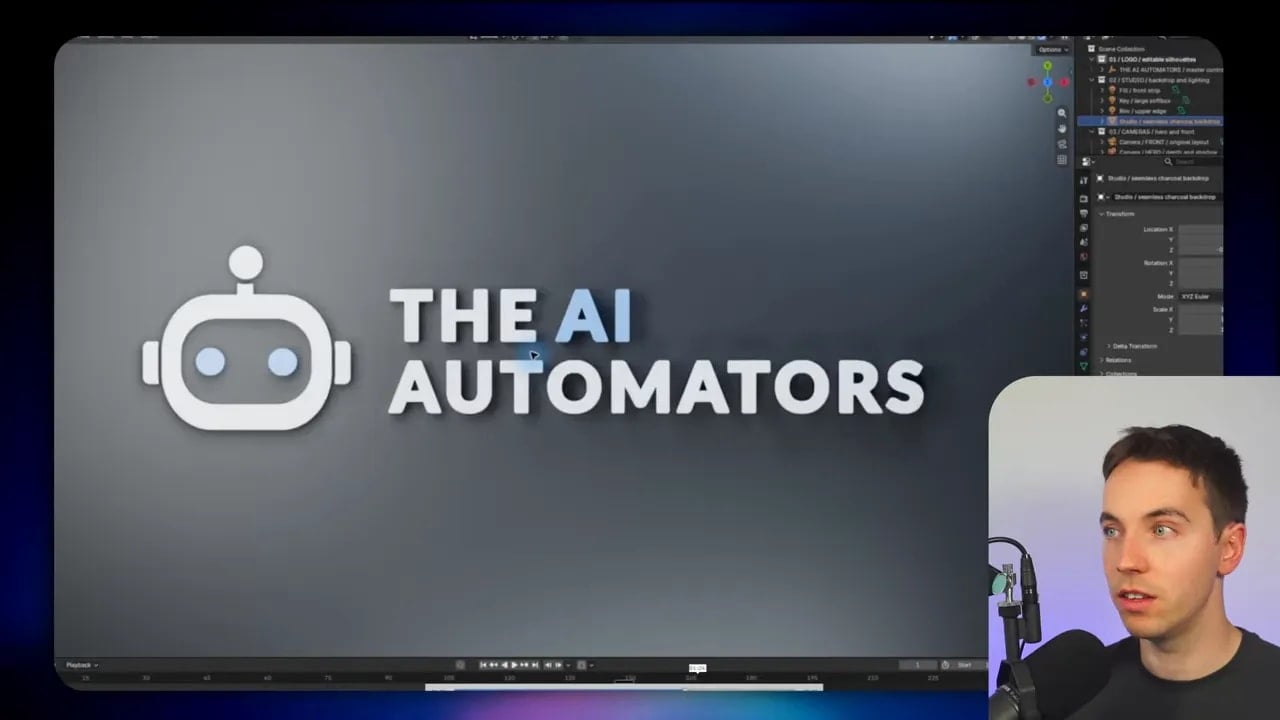
The finished result was a simple 3D logo with a visible rendered presentation. More advanced Blender projects are certainly possible, but this example demonstrates the key idea: Astra didn’t waste huge amounts of time clicking through every part of the software interface.
It created the file in the right format using its own internal tools and reasoning. Then it used computer control for the small number of actions where the desktop application was useful.
This is exactly how I think about efficient AI agents. The computer interface should be one tool in the toolbox. It should not be the default method for every action.
5. Using a Chess Engine in the Browser
For a lighter test, I asked Astra to win a chess game against a bot using the most efficient approach possible.
Astra inspected the game in Chrome and chose to use an engine to determine the moves. It used a Python script to evaluate the chess position, then played the selected moves directly in the browser.
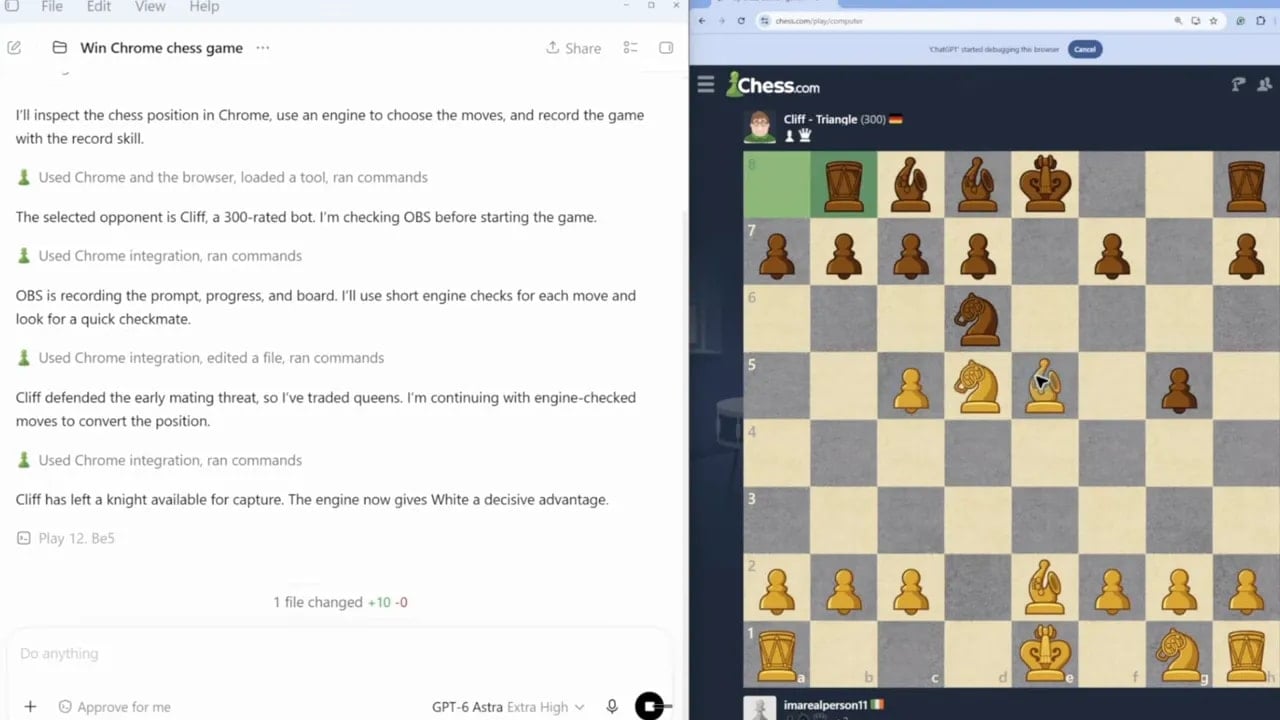
At one point, it sacrificed its queen. I am not particularly good at chess, so I wasn’t about to challenge that decision. The engine later found a forced mate in four moves, and Astra played the finish successfully.
This test is amusing, but it reinforces the same lesson as the Blender example. Astra combined visual control with an appropriate specialized tool. It did not try to play chess purely from interface inspection and intuition when a chess engine could solve the strategy problem more efficiently.
Of course, automating moves against a real person would be poor form. The useful part of the example is the tool selection. An AI agent can inspect an interface, decide that a specialized program is appropriate, use it, and return to the interface to carry out the result.
Computer Use Can Also Extend to a Mirrored Phone
This approach does not have to stop at browser tabs and desktop apps. With a phone mirroring application, Astra could also interact with a phone displayed on the computer screen.
That could be useful for helping configure an application or carrying out on-screen tasks in a mobile workflow. The same security considerations apply, and the level of access should match the sensitivity of the task.
6. Adding Animation to a Canva Presentation
The final example focused on design software. I gave Astra a static Canva presentation and asked it to add animation to the elements.
The original presentation was a simple creative brief. Astra worked through the Canva interface and added intro transitions and sequenced motion. The result turned a static set of slides into something with more movement and structure.
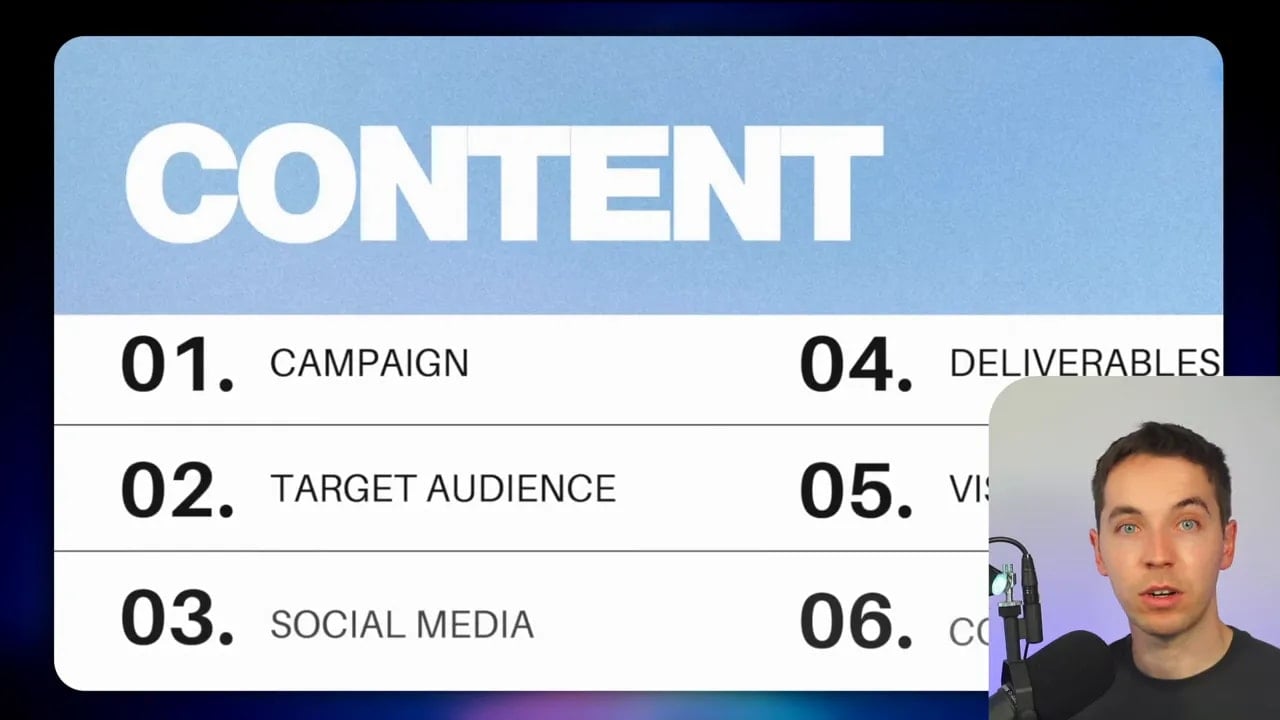
Canva, Figma, PowerPoint, and similar tools are interesting because many already have APIs or integrations. Those tools can be helpful for creating a new design, working from templates, or carrying out repeatable changes at scale.
However, computer use can be the better option when I am already part way through a project and want a few changes inside an existing document. Going through an integration may be slower, more complicated, or unable to reach the exact interface controls I need.
The practical question is always this: what is the shortest dependable path from the current state to the finished result?
When Computer Use Is the Right Tool
Computer and browser control are powerful, but they are not automatically the best choice. They can consume significant usage, especially when a model is running at a high effort level and reasoning through each stage of a complicated task.
I would use computer use when one or more of these conditions applies:
- The application lacks a useful API, MCP, or command line tool.
- The available integration cannot complete the required action.
- The job involves multiple systems that are already open on a computer.
- The work depends on visual checks, browser content, or a specific software interface.
- A small in-progress edit is easier through the interface than through a full integration.
- The task is repetitive enough that background execution saves meaningful time.
I would avoid computer use when a direct integration can complete the same task faster, cheaper, and with fewer chances for interface errors.
For example, if a service has a strong API, an MCP server, or a CLI, an agent can often interact with it programmatically. That is usually preferable to opening a website, locating menus, and clicking through screens.
Use the right tool for the job. Computer use is best treated as the missing piece that makes end-to-end workflows possible when structured access falls short.
How to Make Astra Usage Go Further
Astra can use a substantial amount of allowance during computer-use tasks. This becomes especially noticeable with extra high effort settings, where the model spends more time reasoning about each decision.
I tested most of these tasks using GPT-6 Ultra Extra High, though I did not use fast mode. On a $100 per month ChatGPT subscription, these examples, additional video editing, and a small amount of code generation accounted for around 40% of my available usage. On the $200 plan, the same activity would have represented roughly 10%.
The exact amount will vary by task, but the pattern is clear. Efficient setup matters.
1. Lower Effort for Simpler Jobs
High effort is useful for difficult work. It can be unnecessary for simple, familiar, or highly repeatable tasks. Every extra reasoning step consumes more usage.
If an agent is only applying a known process, handling a clear set of records, or making straightforward edits, reduce the effort level where possible. Reserve the expensive settings for tasks that actually need them.
2. Do Not Use Fast Mode Unless Time Matters
Fast mode can make Astra approximately twice as fast, but it uses more allowance. That is worthwhile when a result is needed immediately. It is less compelling for background work, such as reconciliation, file organization, or an overnight research task.
For many automations, completion without supervision matters more than immediate completion.
3. Create Skills With a Strong Model, Then Delegate
This is probably the most useful cost-saving method. Ask Astra to solve a difficult workflow once, then turn the successful process into a reusable skill. A cheaper model can potentially follow that process later.
The more complete the instructions, the less the next model has to discover. The reusable skill becomes an operating manual for a process that was previously too difficult or unclear for a lower-cost model.
4. Check for APIs, MCPs, and CLIs First
Before assigning a task to computer use, check whether the underlying service already offers a direct connection method. Many services provide API documentation, MCP tools, command line access, or built-in integrations within AI applications.
Often, connecting a service can be as simple as giving Codex or Claude the relevant documentation URL and asking it to use that integration. The ChatGPT and Claude ecosystems also include integrations that can reduce the need for browser control.
Direct connections can save time, reduce usage, and provide more dependable repeat runs. Computer use remains valuable when those options are unavailable or incomplete.
Permissions, Security, and Privacy
Computer use also creates a serious security and privacy discussion. An agent with access to a browser or desktop can potentially encounter sensitive business data, financial records, client information, private documents, and logged-in services.
The right setup depends on your own risk tolerance and the nature of the work.
One option is to run the agent on your own computer, with the access and permissions that come with that. Another is to use a sandbox environment with restricted access. A sandbox can reduce the potential impact of mistakes by limiting the applications, accounts, files, and permissions available to the agent.
I would treat permissions as an active part of the workflow. Approve access deliberately. Keep sensitive tasks narrow. Avoid giving an agent broader control than it needs. For finance, legal work, payments, account settings, or customer data, it makes sense to build in review points before irreversible actions.
Computer use is already good enough to automate practical work that used to be hard to connect end to end. The biggest opportunity is not asking an agent to click around aimlessly. It is identifying the repetitive gaps in a process, giving the agent clear boundaries, and combining visual control with the more efficient tools already available.