

Overview: four ways to run recurring tasks with Claude
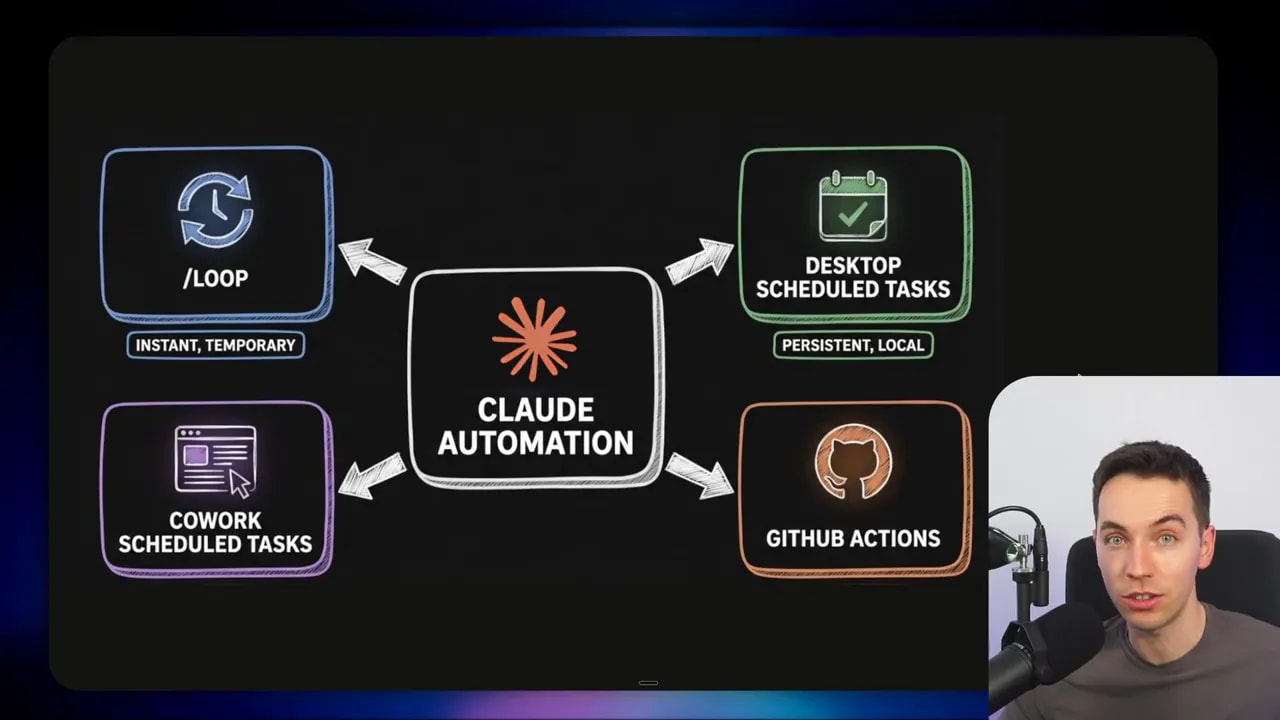
Claude can now execute tasks on autopilot, and there are four practical approaches you can choose from depending on how long you want the automation to run, how reliable you need it to be, and how much technical setup you want to manage.
I break each option down into plain language, show the differences, and explain when I use one method over another. The four approaches are:
- /loop inside Cloud Code — instant, in-session loops you create with plain language
- Scheduled tasks in the Cloud Code desktop app — persistent, isolated runs that survive restarts
- Claude Cowork scheduled tasks — similar scheduling for non-technical users in a sandboxed interface
- GitHub Actions — cloud-first workflows for developer-centric automations
What /loop does and why it’s appealing
I created an automation that uses the new /loop command inside Cloud Code. It’s as simple as typing /loop, specifying an interval like one minute or one day, and writing the instruction you want Claude to repeat. For a quick test I told it to “say hi” every minute. It started running immediately and showed the first execution straight away.
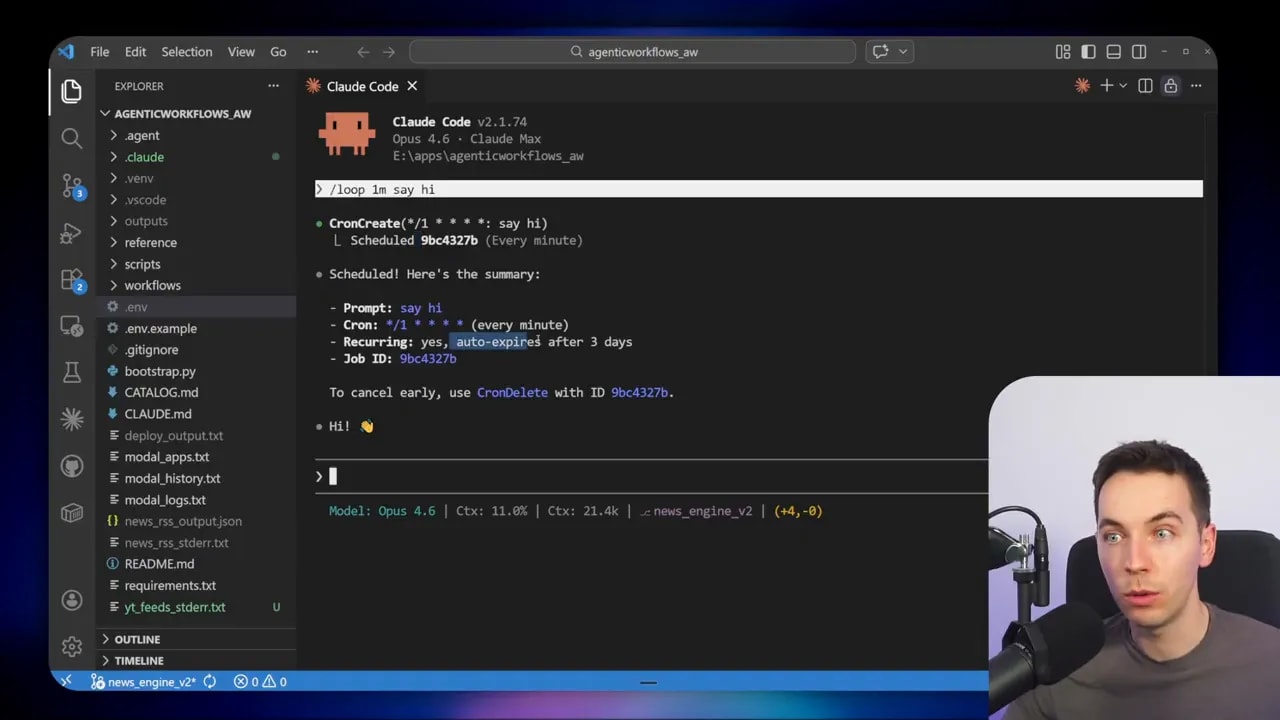
Under the hood, /loop uses cron create to set the schedule. That means you can schedule recurring tasks in seconds without any setup or configuration. It’s extremely handy for quick experiments, prototyping automations, or running a short-term monitoring task.
Example use cases for /loop
- Check an inbox and summarize new emails every few minutes
- Run a brief web scrape to capture updates on a page
- Set one-time or short-lived reminders, like “remind me at 3 p.m. to push the release branch”
- Try out an automation pattern before committing to a longer-term setup
Important limitations of /loop
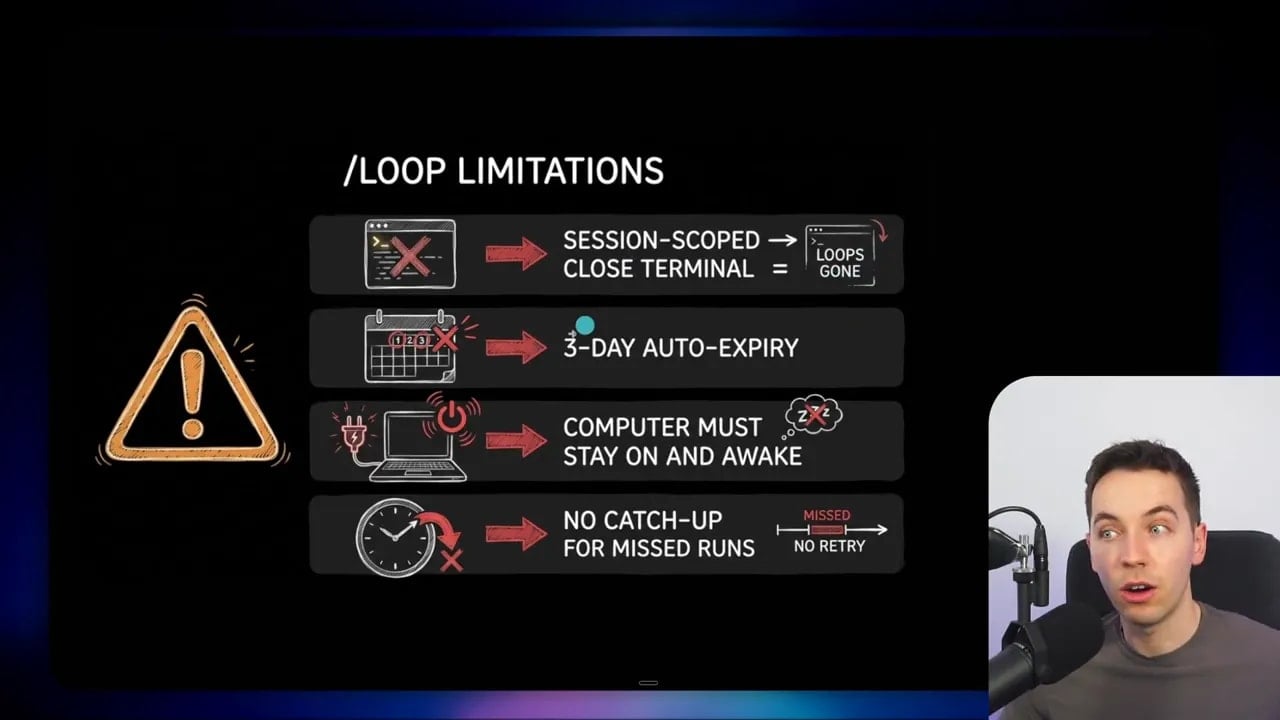
While /loop is great for instant automation, there are four constraints you must accept when using it:
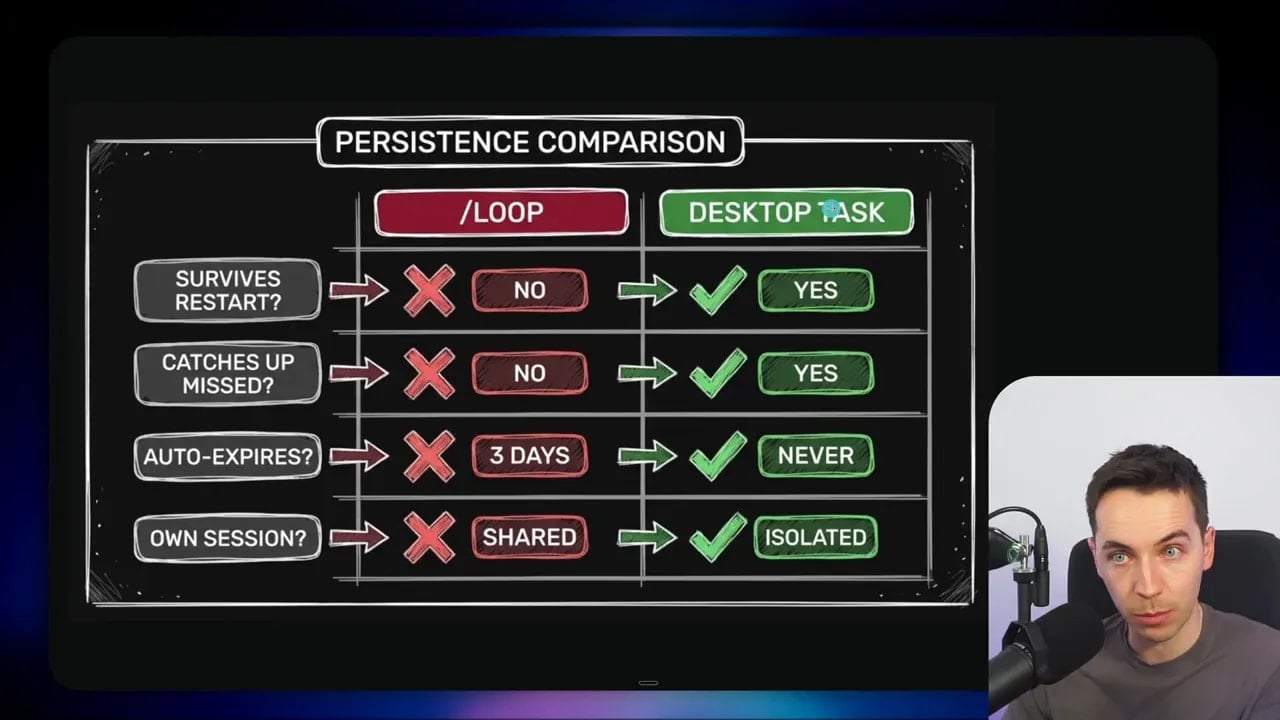
- Session scoped. The loop runs inside the current Cloud Code session. Close that terminal or session and the loop ends.
- Three-day auto expiry. Loops automatically expire after three days. They are meant to be temporary.
- Local dependency. Your computer must stay on and the session must remain active for the loop to keep running.
- No catch-up. If the computer sleeps or the session closes during scheduled runs, missed iterations don’t queue up and run later.
Think of /loop like a sticky note on your desk. It’s perfect for short, disposable reminders or quick testing. It’s not the right tool when you need reliable, long-term scheduling.
Scheduled tasks in the Cloud Code desktop app
For anything you want to run reliably over days, weeks, or months I use scheduled tasks in the Cloud Code desktop app. These provide a persistent way to run recurring jobs without keeping my own machine awake.
In the app you go to the Code tab, open Schedules, and create a new task. You can name it, add a description, and paste the prompt you want Claude to run on schedule. You also choose which model to use — I pick Opus 4.6 for heavier jobs and High Q 4.5 for quick tasks that use fewer resources.
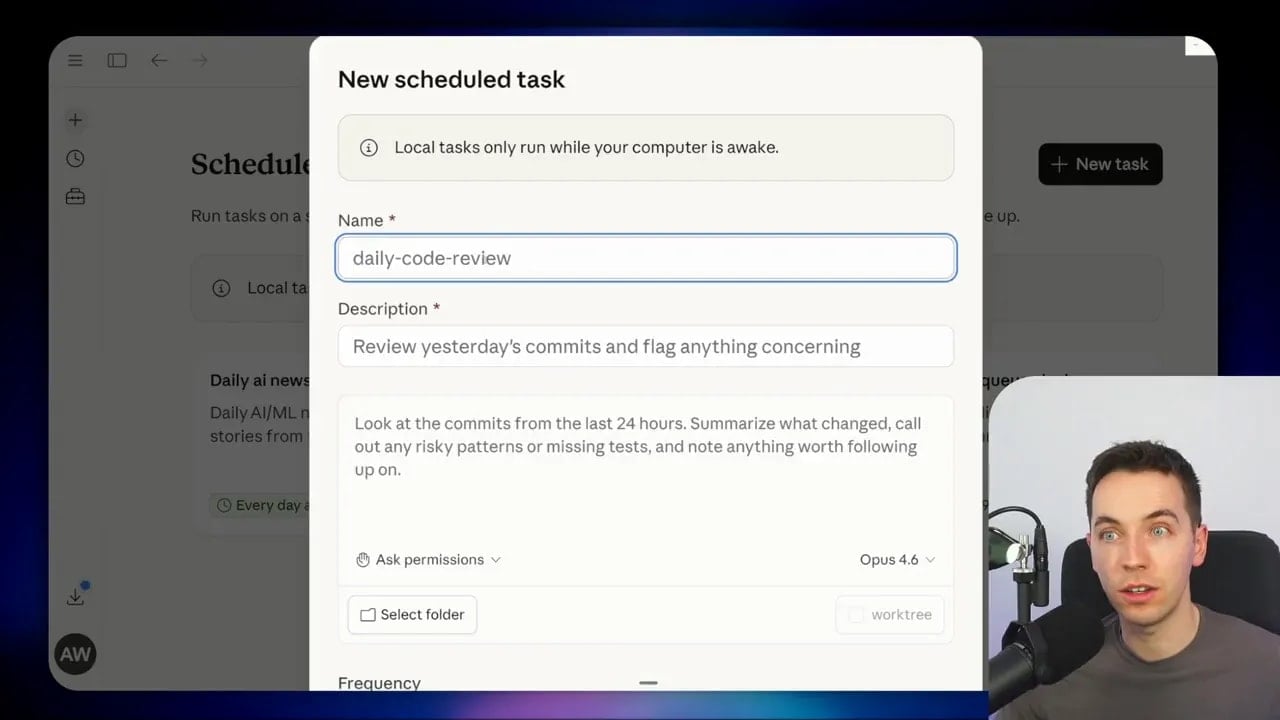
Scheduling options and session behavior
- Frequencies: hourly, daily, weekdays, weekly, or manual trigger
- Time of day: pick a precise run time for daily or weekly tasks
- Isolated sessions: each scheduled run creates a fresh Cloud Code session with isolated context
- Catch-up behavior: if the app is closed when a run was due, it will catch up the next time the app is open
I use scheduled tasks to automate daily briefings, collect competitor signals, and curate content. One automated job I built scrapes AI headlines each morning and posts a summary to a Slack channel. Each run spawns a new session and the task sends the message through the Slack connector I configured.
Why isolated sessions often make sense
Running each schedule in an isolated session prevents token bloat and keeps context short. If a task needs memory of previous runs, you can store state in local Markdown files or other storage and have the task read that data at the start of each run. For most regular jobs, fresh context and a short prompt give predictable, reproducible behavior.
Claude Cowork: scheduling for non-technical users
Claude Cowork puts similar scheduling features into a simpler, less technical interface. It’s basically Cloud Code in a friendlier wrapper. Because Cowork runs in a sandbox, it’s slightly limited compared to the full desktop app, but it still covers many common use cases.
You can type /schedule directly in Cowork to create a task in plain language. There’s also a Schedule menu you can use to define frequency and prompts just like in the desktop app. I recommend Cowork for collaborators who prefer a straightforward interface and don’t need full file system access or advanced connectors.
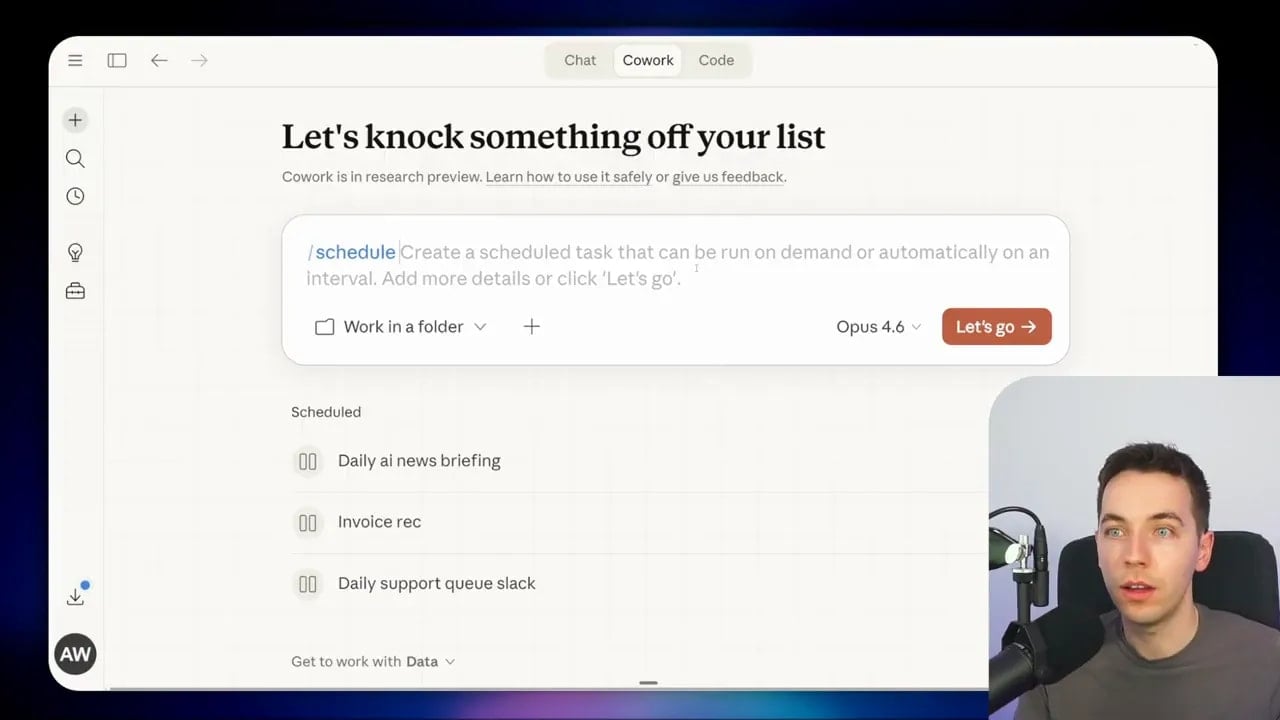
Note that Cowork is still early and some people experience issues running the app. It’s handy for rapid setup and for teams where non-technical members need to create recurring tasks without the complexity of the desktop app.
GitHub Actions: cloud-native workflows for engineering teams
GitHub Actions sits in a different category. It runs on GitHub’s infrastructure, not on your local machine or the Cloud Code app. That makes it the right choice when tasks need to run independently of any desktop or session.

You can trigger Actions on events like pull requests, issue comments, or cron schedules. If your workflow involves code repositories, multi-developer coordination, or tasks that touch pull requests and automated PR creation, Actions is the most scalable option.
When to choose GitHub Actions
- Automated summaries of commits, open issues, or code metrics
- Repository automation that creates or updates pull requests
- Security audits or automated code checks that must run on cloud infrastructure
- Workflows that must run even if no team member’s computer is online
Actions require more setup and are developer-focused, but they remove the dependency on your local environment entirely. For engineering teams that want reproducible, cloud-hosted automation tied to repositories, Actions is the clear winner.
Compare and choose: speed, persistence, and simplicity
I think about three axes when picking a method: how quickly I want something running, how long I want it to persist, and how technical the setup can be.
- Speed / Ease: If I want a loop running in seconds with almost zero setup, I use
/loop. - Persistence / Reliability: When tasks must run daily or weekly without interruption, I use Cloud Code scheduled tasks in the desktop app.
- Non-technical: For teammates who prefer a simple UI, I recommend Claude Cowork scheduled tasks.
- Cloud-first development workflows: For repo-driven automations and event triggers, I use GitHub Actions.
Quick decision guide
- If you need a test or short-lived automation: choose
/loop. - If you need a reliable recurring job that survives reboots: choose Cloud Code scheduled tasks.
- If a less technical person needs to create and manage schedules: choose Claude Cowork.
- If your automation should run independent of any computer and integrate with a repo: choose GitHub Actions.
Practical examples I use
Below are concrete automations I implemented to illustrate the strengths of each approach.
/loop — quick inbox summary
I used /loop to prototype an inbox summary that checks for unread messages every five minutes and drafts a short summary. It let me iterate on the prompt and slot structure quickly. The three-day expiry didn’t matter because I only needed it while testing the prompt.
Desktop scheduled task — morning briefing
I built a daily briefing that runs at 8 a.m. It fetches headlines, summarizes key emails, and posts into Slack. Each run opens an isolated session so the prompt starts fresh and reads state from a local Markdown file when it needs to reference previous summaries.
Claude Cowork — weekly content planner for a non-technical colleague
A teammate used Cowork to create a weekly content generation task. The interface let them schedule and edit prompts without touching the desktop app. It ran inside Cowork’s sandbox and posted outputs to a shared channel.
GitHub Actions — daily repo summary and PR assistant
For a project with frequent contributions, I added a scheduled action that compiles yesterday’s commits, highlights open issues, and posts a concise summary to the project’s team channel. The action also runs on new pull requests to suggest label changes or checklist updates automatically.
Practical tips and best practices
- Start small with /loop. Use it to validate prompts and workflows before moving to persistent scheduling.
- Keep session state explicit. If you need persistence across runs, write state to files or a lightweight store that scheduled tasks can read.
- Pick isolated sessions for predictability. They reduce token usage and avoid unexpected context bleed between runs.
- Choose the right model. Use higher-capability models for complex tasks and lighter models for routine summarization.
- Monitor for missed runs. With desktop scheduling you get catch-up behavior, but with local loops you won’t. Design around that limitation.
- Use connectors sparingly. When posting to external services like Slack, ensure your credentials and connectors are configured in the app, not in short-lived loops.
When to promote a /loop into a scheduled task or action
After validating a prompt with /loop, I ask three questions before promoting it:
- Does this need to run reliably for more than three days?
- Can it tolerate missed runs or does it need strict delivery?
- Should it run even when my computer is off?
If I answer yes to any of these, I either move the task to the Cloud Code desktop scheduler or, for repo-bound workflows, to GitHub Actions. If a non-technical teammate needs to manage it, I consider Claude Cowork.
Final workflow example: prototype to production
Here’s the sequence I use when building an automation:
- Prototype the prompt using
/loopuntil the output looks right. - Test the automation against a few edge cases while the loop runs.
- If persistence is required, create a scheduled task in the desktop app and move any necessary state into Markdown or a connector.
- For developer-centric automations tied to a codebase, implement an equivalent GitHub Action and handle secrets with the repo’s secrets manager.
- Set monitoring and alerting for long-running jobs so you know when a run fails.
This approach keeps initial iteration fast while allowing a clear path to a production-grade setup. I find it saves time and avoids moving unfinished automations into production prematurely.
Key takeaways
- /loop is fast and simple but temporary. Use it for quick experiments and short-term reminders.
- Cloud Code scheduled tasks are the workhorse for reliable, persistent automations that need to survive restarts and catch up after downtime.
- Claude Cowork provides a simplified scheduling experience for non-technical users, but it runs in a sandbox with some limitations.
- GitHub Actions belongs to engineering workflows and runs independently in the cloud, making it ideal for repo-driven automation.
Each option has a place in an automation toolkit. Choosing the right one comes down to how long you need it to run, whether you can keep a local session open, and how closely the task ties to a repository or team workflow. I use /loop to get something working in minutes, and then move to scheduled tasks or Actions when I need durability and scalability.
