
I created an automation that treats a knowledge base more like a living file system than a static set of vectors. Instead of relying only on semantic search, this approach lets an AI agent actually explore folders and files, form hypotheses about where answers live, and then dig deeper—just like a developer reading a codebase. The result is a knowledge agent that chooses the right retrieval strategy for each query: semantic search, structural exploration, or a hybrid of both.
Why structural exploration matters
Semantic search is powerful when you don’t know the exact wording of your question. It matches meaning across documents and scales well. Yet it struggles badly with content that’s structurally repeated: templates, contracts, weekly reports, or code. When many documents follow the same boilerplate, embeddings return near-identical matches and you end up chasing the wrong source.
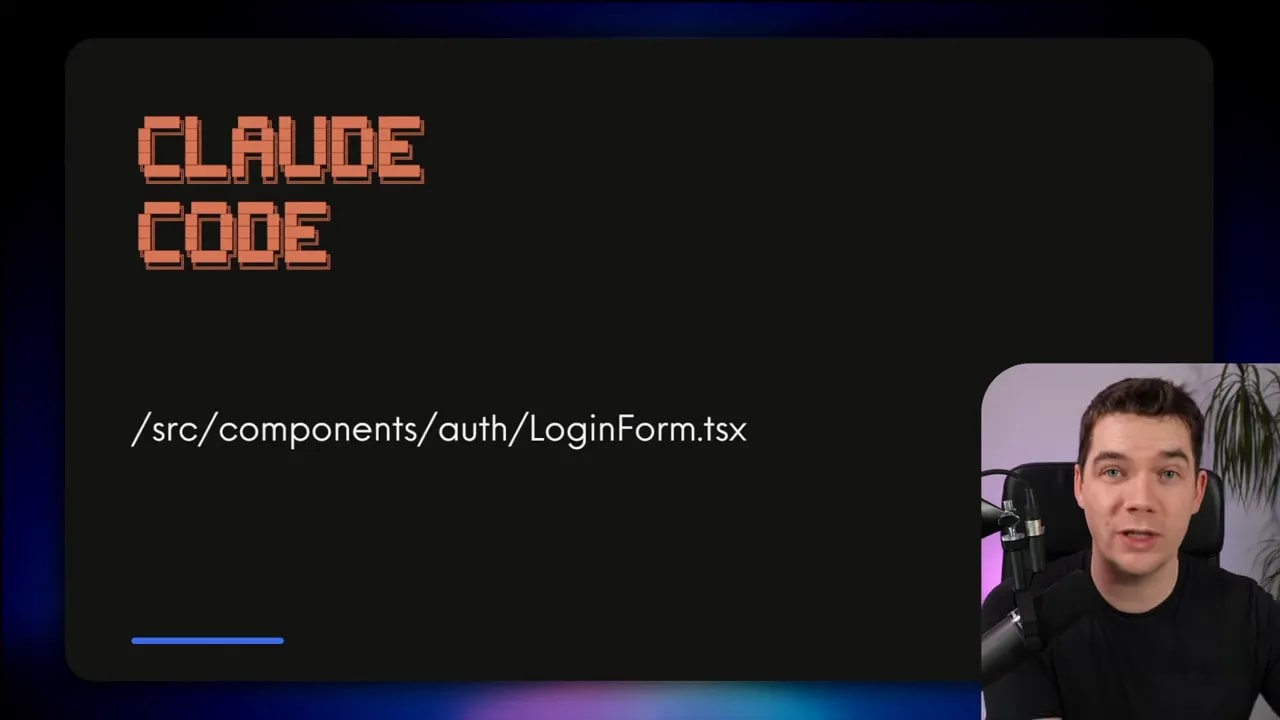
File and folder structure carries meaning for free. A file path like src/frontend/components/authentication/login-form.tsx tells you a lot about the file before you open it: it’s part of the front end, it’s a component, and it’s related to authentication. An agent that can traverse that path can form better hypotheses than an agent that only looks at isolated embedding vectors.
Consider a few practical examples:
- Weekly reports: Reports follow the same template across weeks. Semantic search might return many similar chunks from different weeks. Structure reveals the most recent report under a path like
clientA/2026/Q1/March/week-3.md. - Legal documents: A master services agreement with multiple versions yields identical embeddings. Exploration quickly surfaces the newest version instead of returning older content as ground truth.
- Code bases: Import blocks and tests look very similar in embedding space. Exploratory traversal locates the implementation files rather than tests or docs that happen to share keywords.
Core tools that enable exploration
The approach borrows from how developer-focused agents operate. Claude Code is a great example: it doesn’t use vector search to explore a code base. Instead it uses a small set of navigational tools that an LLM can call repeatedly:
- glob — find files by pattern, e.g.,
**/test_*.py - grep — search inside files for regex or text patterns
- read — open a file (whole file or specific line ranges)
- ls / tree / find — list directories, show the tree, locate paths
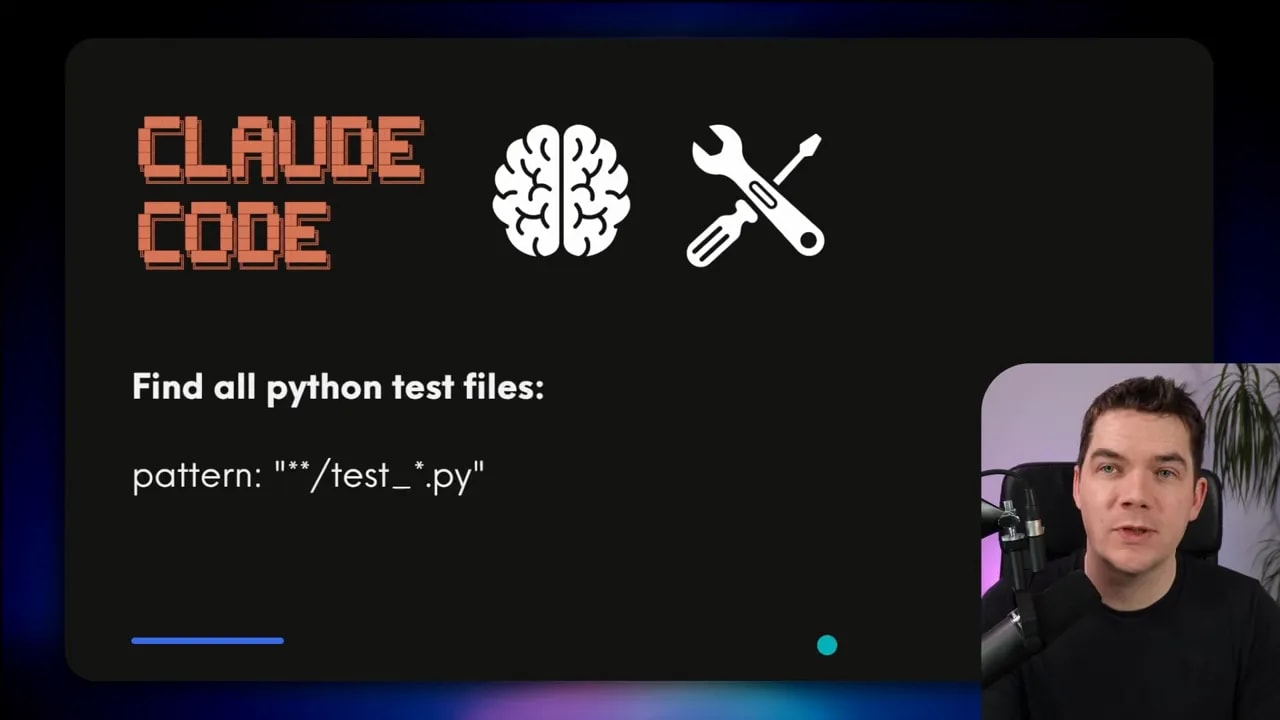
With these tools, an agent performs short iterative loops: list a folder, open likely files, read targeted sections, then refine the search. This iteration lets the model propose theories (e.g., “authentication code is probably in /auth”) and validate them by fetching specific files. In the course of a single question, I often saw agents burn 20–40 tool calls to arrive at a precise answer.
When to use semantic search, when to explore, and when to combine both
Both techniques have strengths. Use semantic search when the query is vague, cross-document meaning is important, or language variety is broad. Use exploration when the repository is highly structured or when recency and versioning matter.
Metadata filtering can rescue semantic search in many cases. If your chunks include tags like client, year, quarter, document_type, then queries that specify these filters will retrieve precise results. However, metadata has its own costs:
- It must be created and maintained.
- It’s invisible to casual inspection; folder structure isn’t.
- It fails silently when filters are wrong (a common trap in production RAG systems).
Because of these trade-offs I recommend a hybrid approach where the agent decides which mechanism to use. If a query implies recency or versioning, exploration may be better. For fuzzy conceptual queries, semantic search often performs best. Let the agent call both tools and combine the evidence.
Three practical approaches to give agents access to private knowledge
I examined three deployment approaches and implemented the third for a multi-user web app:
1. Desktop (Claude Cowork style)
Users select a local folder. The agent gets direct access to the raw files and can run parameterized commands (glob, grep, view). This is simple for single-user or local setups and allows direct search of binary files only after pre-processing. It’s limited for remote or multi-user environments.
2. MCP or API integration
If your documents live in Google Drive, SharePoint, Notion, etc., you can integrate via their APIs. The agent then calls list/grep equivalents through the vendor API. This works but relies on the vendor’s primitives and often lacks pre-processing (OCR, Markdown extraction) unless you perform it before upload.
3. Custom remote knowledge base (what I built)
I built a custom knowledge base that stores both the original files and extracted Markdown. Navigation tools are implemented as SQL and Python functions instead of shell commands. This runs remotely, supports multi-user isolation, and can include pre-processing pipelines (Docklane) and OCR.

Benefits of the custom approach:
- Runs on a server behind a firewall or in the cloud
- Supports multi-user access with row-level security
- Uses SQL for secure, auditable navigation operations
- Integrates pre-processing and OCR as part of ingestion
Architecture and tech stack I used
I built the app as a full-stack web system designed to support exploration-based retrieval while keeping security tight.
- Front end: React with Vite, TypeScript, ShadCN, and Tailwind for UI components
- Back end: Python with FastAPI and Docklane for the ingestion pipeline
- Database & storage: Supabase (self-hosted in Docker for air-gapped work); row-level security enforces per-user isolation
- AI models: local LLMs (e.g., Quinn) plus optional cloud models for embeddings and completions

The system stores both chunked embeddings for semantic search and a full Markdown copy of each extracted document for exploration. That separation proved valuable: the agent can run fast semantic searches while still being able to read or reassemble whole documents when necessary.
Design decisions that mattered
During implementation I made several key decisions to keep the agent reliable and useful:
- Store full Markdown separately from chunks. Don’t try to reassemble full documents from chunk stores in every case. Keep an independent Markdown column that the read tool can return in full or by line range.
- Allow unlimited folder nesting. Model the knowledge base like a real file system and enforce max depth at query time to avoid giant results.
- Support both per-user and global folders. Users get private folder trees by default; admins or owners can mark a folder shared globally. The UI shows a clear icon so users know which folders are shared.
- Make grep and glob flexible. Both should accept a folder context (path) or operate across the entire knowledge base. Grep should return document lists by default; a subagent can load the file for context if needed.
- Implement an explorer subagent. This subagent orchestrates complex searches using list/tree/grep/glob/read and can call the analyzed-document subagent for deep analysis. Limit exploration rounds to prevent infinite loops.
How I used a spec-driven workflow with GSD
I experimented with the Get Shit Done (GSD) framework to structure the build. GSD enforces a phased planner: discuss, plan, execute, verify, and close gaps. It maps the code, asks clarifying questions, and generates planning documents for each phase.
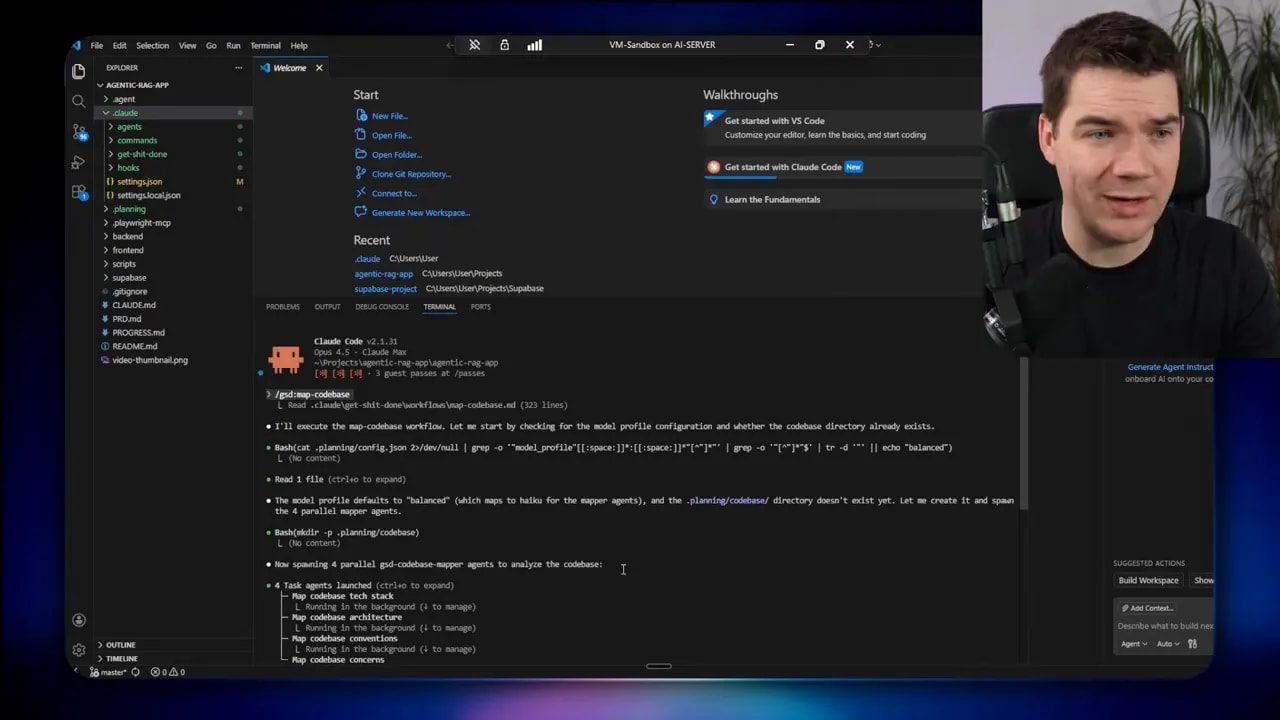
The main phases I ran:
- Folder schema and core APIs
- Document ingestion and folder relationships
- Front-end folder tree UI
- Navigational tool APIs (list, tree)
- Search tools (grep and glob)
- Read/view tool
- Explorer subagent and verification
GSD’s brainstorming stage was genuinely useful. It forced me to answer questions I might have skipped, like whether folders are global or user-specific and how the read tool should work with line ranges.
Practical hiccups and how I fixed them
Real development always includes surprises. These were the notable ones:
- Supabase MCP and port conflicts: Running Supabase locally in Docker required adjusting ports to avoid conflicting with the app (8000 vs 8001). I had to edit Kong YAML to enable local MCP access.
- Fernet encryption key: The backend requires a URL-safe base64 Fernet key. I generated one with a helper script; later I added a script so future runs won’t need manual creation.
- Uploads and duplicate detection: File uploads silently returned “action skipped” when the file already existed. I added explicit UI feedback to make the behavior clear.
- Folder sharing cascade: Sharing a top-level folder should cascade into subfolders. That required fixing how the share flag was applied and ensuring ownership rules prevent unauthorized changes.
Building and improving the front end
The documents page evolved from a simple drag-and-drop to a Google Drive-like interface with a tree view and breadcrumb trail. I used a mix of custom components and a front-end design skill to speed up styling.

Practical UI considerations I addressed:
- Breadcrumbs to show path context so users understand where they are.
- A grid or list layout for documents with sorting and filtering options.
- Context menu operations on folders: create, rename, delete, move, and mark as global.
- File details panel that appears on the right side with metadata and a preview.
Small UX choices matter. For example, when creating a new folder the input must gain immediate focus so users can type without extra clicks. Another example: make it explicit when a file upload is skipped because it’s a duplicate.
Tracing, subagents, and observability
Observability matters a lot for agentic systems. I connected tool calls and subagent processes into LangSmith traces so I could inspect the waterfall of decisions that led to each answer.
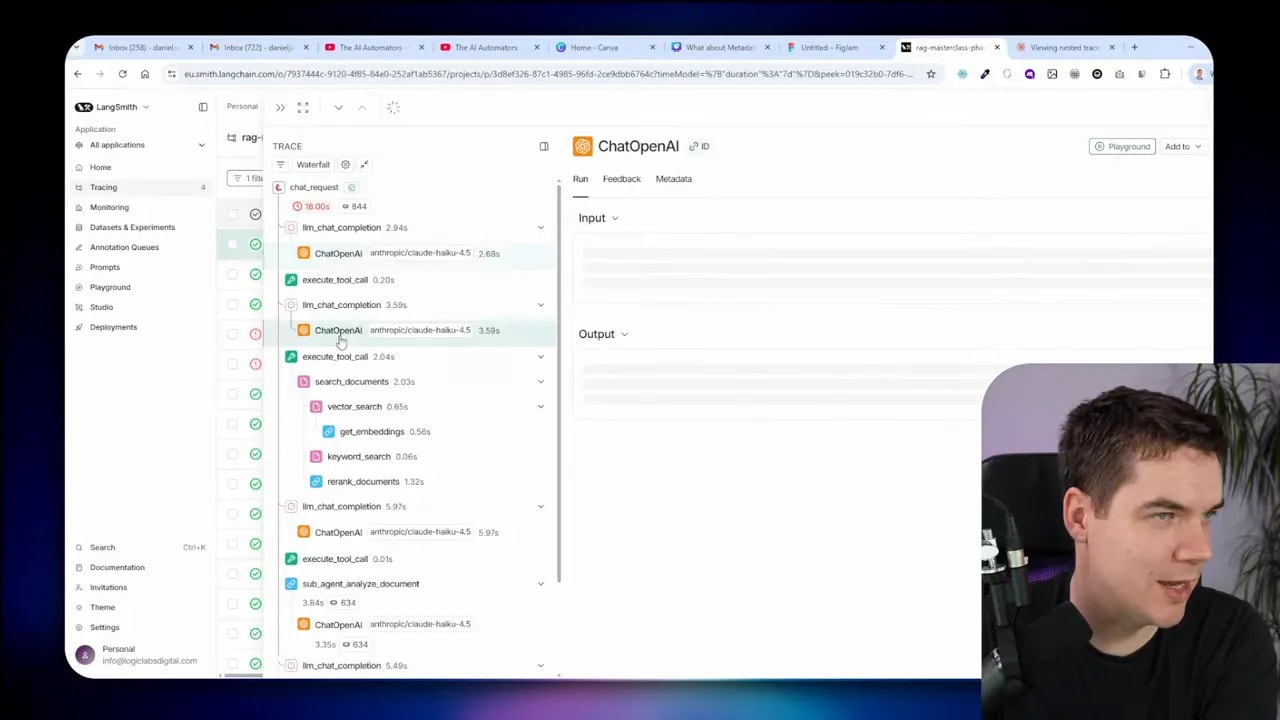
The traces show a clear hierarchy:
- Main agent LLM call
- Tool calls (tree, glob, grep)
- Subagent invocation (analyzed document)
- Subagent tool calls and final analysis output
- Result aggregated back to the main agent
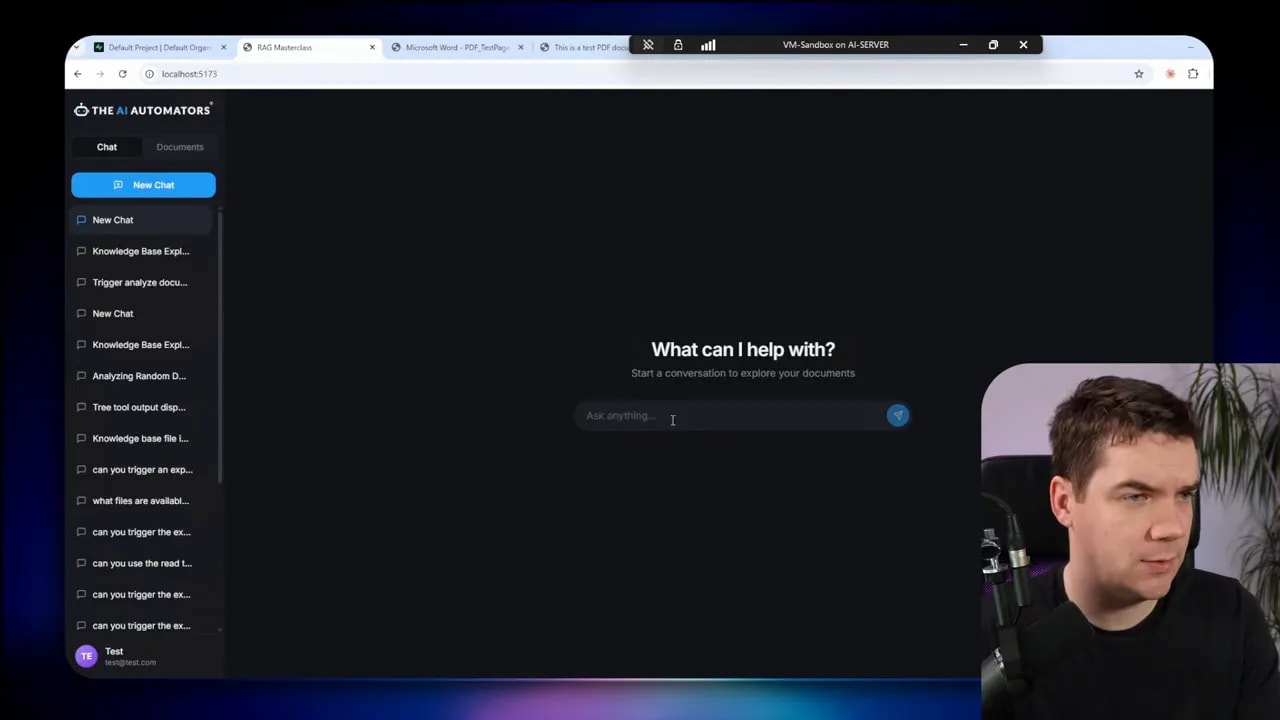
This tracing helped me diagnose two important problems:
- Missing run context across nested calls: Subagents initially created separate traces that weren’t linked. Passing a run context through each nested call fixed trace nesting and made debugging far easier.
- Infinite exploration loops: An exploration subagent can get stuck traversing too deeply or repeating steps. I enforced a maximum exploration round limit and truncation rules when listing large folders.
How the explorer subagent works in practice
The explorer subagent orchestrates a research task. It performs three key actions:
- Build a targeted view of the folder structure using tree and list tools with depth limits.
- Use glob and grep to find candidate documents and patterns.
- Load documents or sections with the read tool, then call the analyzed-document subagent to extract summaries or answers.
The subagent can run these steps in parallel when safe, but I prefer a sequence that restricts breadth early and then goes deep selectively. That keeps the context window manageable and prioritizes the most promising documents.
Practical deployment tips
If you plan to build something similar, these are useful rules I followed:
- Keep full text alongside chunks. Store the extracted Markdown separately from embeddings so read operations can return entire documents when needed.
- Preserve folder metadata in the DB. Keep folder_id and parent_id columns and use recursive CTEs for tree traversal. Enforce depth and item caps in queries.
- RLS is your friend. Use row-level security in Supabase (or similar) to ensure users only access what they own or what’s shared.
- Automate metadata tagging where possible. If you can infer client, quarter, version automatically, do it. Manual tags work, but automation scales better.
- Pre-process files on ingestion. Use OCR for scanned PDFs, extract Word/XLSX content to Markdown, and generate embeddings at ingest time.
- Provide clear UI feedback. Show upload status, duplicate detections, and folder share state so users aren’t surprised by silent failures.
- Limit exploration breadth. Always set a maximum tree depth and a maximum number of items returned by list/tree tools.
Lessons learned about spec-driven agent development
The planning scaffolding kept the project focused. A structured process helps spot design questions early: Should grep search across everything or inside a path? How should read work with line ranges? Answering those up front saved time later.
On the flip side, too much planning can slow momentum. The GSD framework generated many useful documents, but it sometimes felt heavy when features were small. I found a middle path: spend time clarifying the high-risk design choices and then iterate quickly on implementation with frequent verification.
Another key insight: don’t skip observability. Tracing nested agent and tool calls turned out to be the fastest way to debug agent behavior and fix permission issues, like ensuring the agent respects user-scoped folders.
How this improves retrieval quality
The combined system gives you three retrieval modes:
- Semantic search for broad conceptual queries and when exact wording is unknown.
- Exploration for structured, versioned, or templated content where folder position and naming matter.
- Hybrid where the agent uses both to cross-check results and assemble high-confidence answers.
When both modes are available, the agent can follow a pattern like:
- Run a fast semantic search for candidates.
- If results are ambiguous, run glob/grep in likely folders for more precise candidates.
- Read whole documents or sections as needed to produce the final answer.
What’s now in place
After these phases I have a working agentic RAG app that includes:
- A document management system with nested folders and drag-and-drop uploads
- Shared and private folder semantics with clear UI indicators and ownership rules
- Search tools: semantic search for embeddings, plus glob and grep for structure- and pattern-based retrieval
- Read/view tools that return full Markdown or specific line ranges
- An explorer subagent that orchestrates complex research tasks and can call a document-analysis subagent for deep inspection
- Full tracing of LLM, tool, and subagent calls so I can debug and optimize behavior

The agent now chooses retrieval strategies dynamically and supports multi-user isolation out of the box. It can run air-gapped using a self-hosted Supabase instance and local LLMs when required.
