

Overview
Claude Cowork brings powerful automation and agent orchestration to a simple desktop interface. I built automations with it that read folders, extract data from invoices, control a browser to interact with web apps, and generate deliverables like Excel sheets, PowerPoint decks, and Word reports. The underlying engine borrows the same planning and sub-agent approach that made Claude Code effective, but Cowork hides the complexity behind a friendly app aimed at non-technical users.
What Claude Cowork actually does
At a basic level, Cowork combines four capabilities many teams need:
- Folder access: give the app a working folder so it can read, write, and move files.
- Browser automation: let Claude control a browser to click through apps and scrape or submit data.
- Skills and plugins: reusable markdown-based prompts and bundled workflows you can create, share, and reuse.
- Agentic planning and execution: the system builds plans, splits tasks into sub-agents, and runs them in parallel where it makes sense.
That combination is what makes Cowork genuinely useful for everyday business tasks. You don’t have to code complex agents. You don’t have to wire up workflows in a separate automation tool. You describe the work and Cowork executes.
Core features, explained
Folder access and file automation
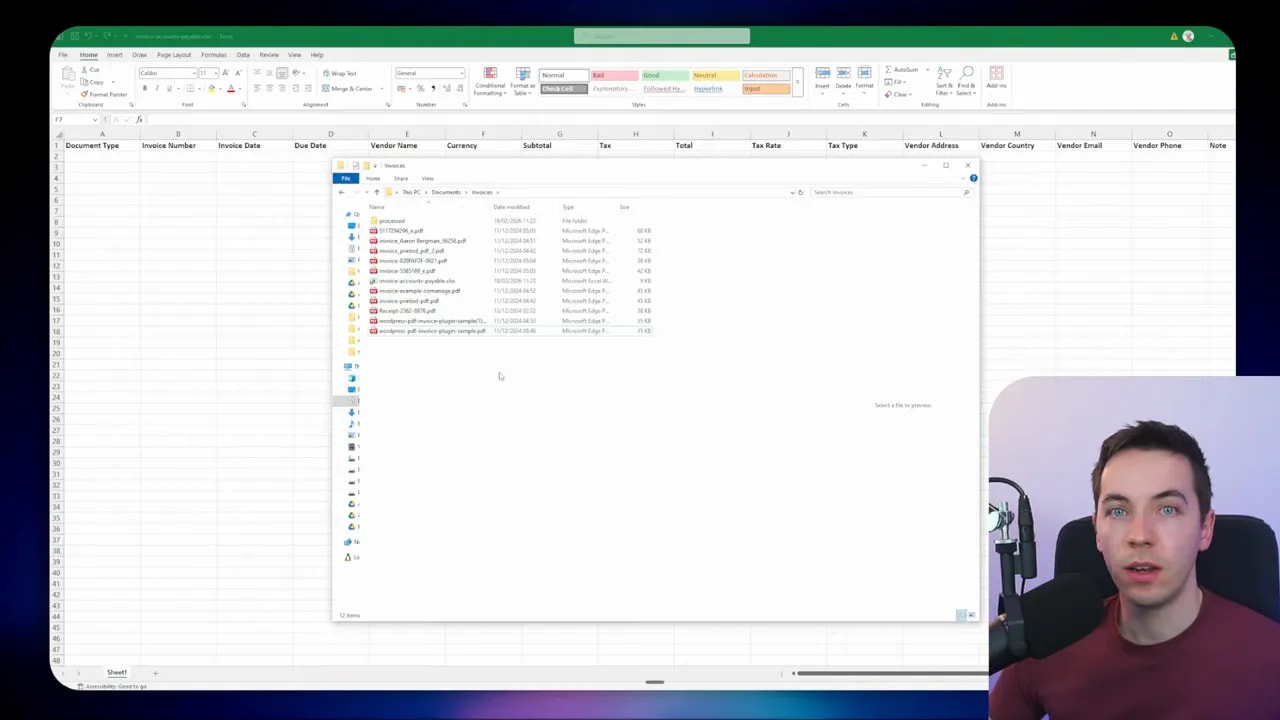
You can point Cowork at a specific folder on your machine and tell it to work from that folder. It reads documents, runs OCR on scanned PDFs, extracts structured data, creates new files, and moves processed items into another folder. I used this to extract invoice data and populate an Excel sheet automatically. The process handled both machine-readable PDFs and scanned images using OCR.
Browser automation
Cowork can open a browser tab and interact with pages the way a human would. That includes clicking buttons, filling forms, downloading reports, and even reading content that an API doesn’t expose. The automation is impressively accurate, though it can be slow. Expect minutes for multi-step interactions.
Use this feature when an app has a usable web UI but lacks the API features you need. For example, I had Claude reconcile invoices by clicking through a web accounting app and comparing transactions.
Skills and plugins
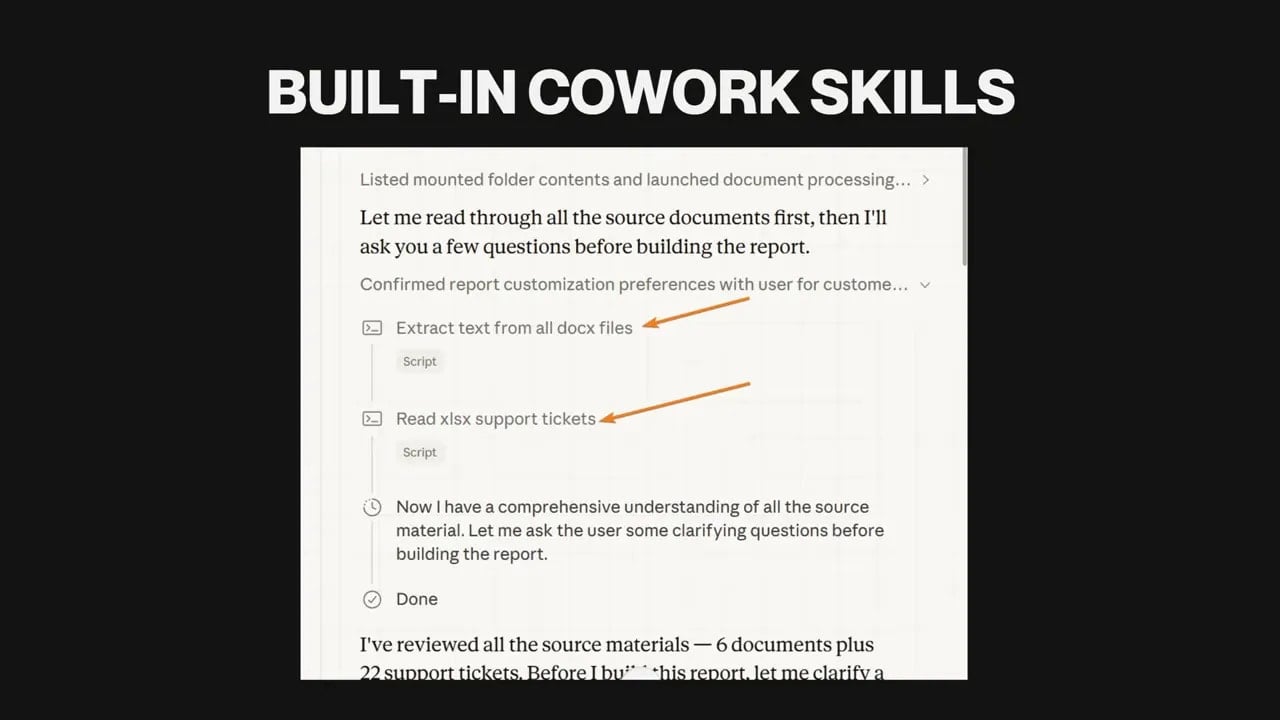
Skills are simple markdown files that act like rich, reusable prompts. They store detailed instructions and parameters for specific workflows. Plugins are bundles of skills and slash-commands geared toward related tasks or industries.
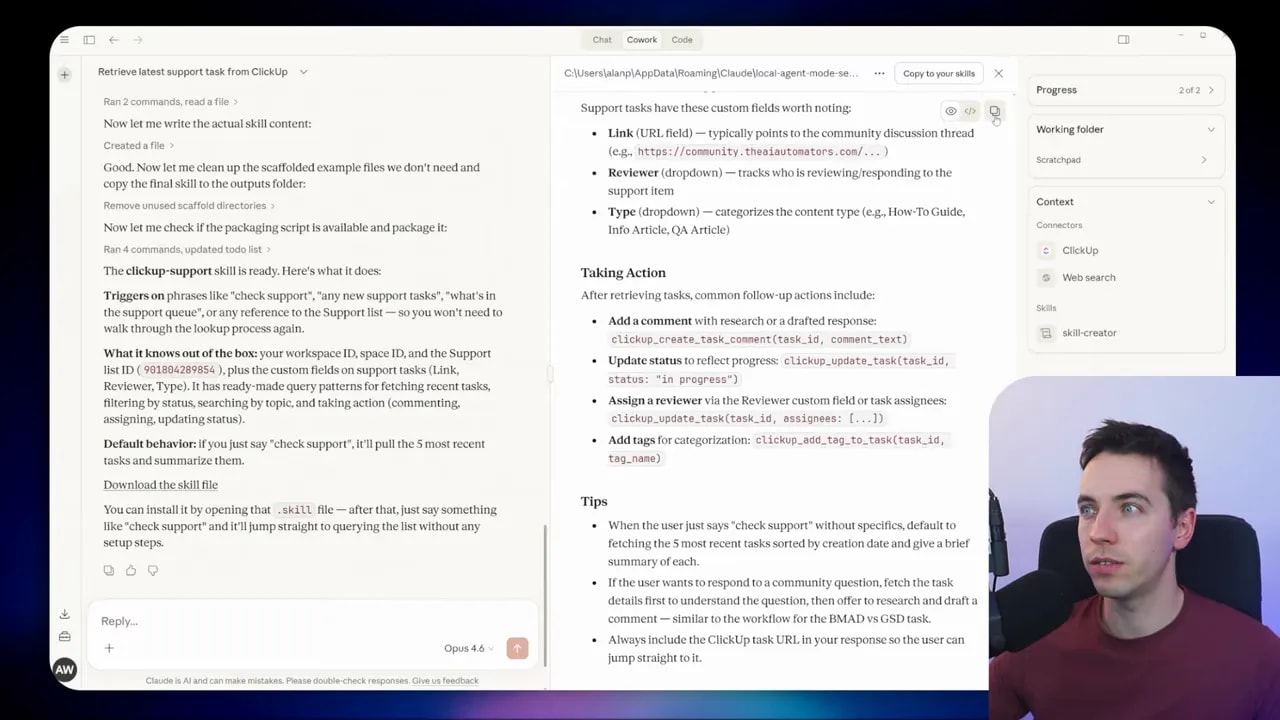
Cowork keeps a high-level index of skills in memory and only loads the detailed content when needed. That keeps the chat context light while still enabling complex behavior. I created a ClickUp skill to speed up future queries and reduced the need for repeated credential discovery.
Data analysis and visualization
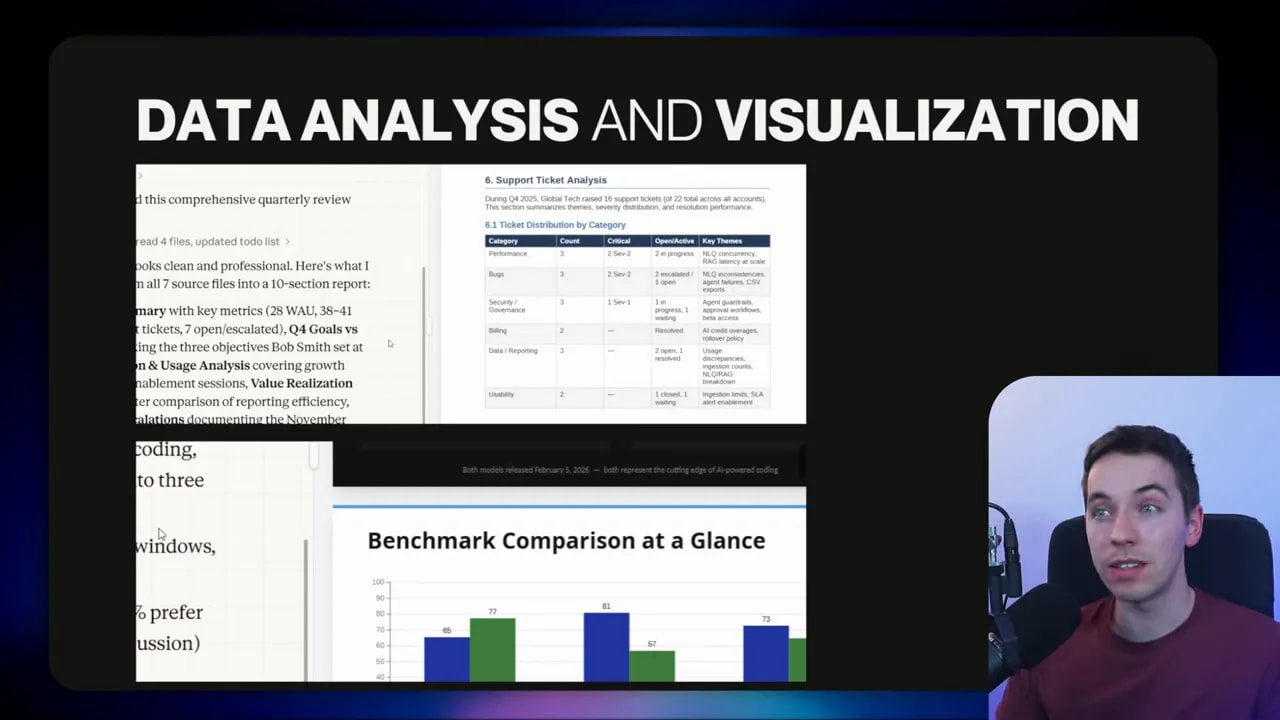
The tool can run Python and other libraries to create tables, charts, and diagrams. Those outputs can be embedded into Word documents and PowerPoint presentations generated as deliverables. Behind the scenes, Cowork builds a plan, splits work into tasks, and runs sub-agents in parallel when appropriate.
Connectors and MCP support
Cowork includes many built-in connectors for popular apps. If a connector isn’t available, the app supports custom MCP endpoints. That makes it possible to bridge to other automation platforms like n8n or Zapier by treating them as a connector endpoint.
Why use Cowork instead of Claude Code—or alongside it
Claude Code is meant for developers building advanced agent-based apps. Cowork exposes a lot of that capability in a friendly desktop interface aimed at non-technical users. That matters for adoption: many people will be comfortable using a simple app to get work done without writing an agent harness.
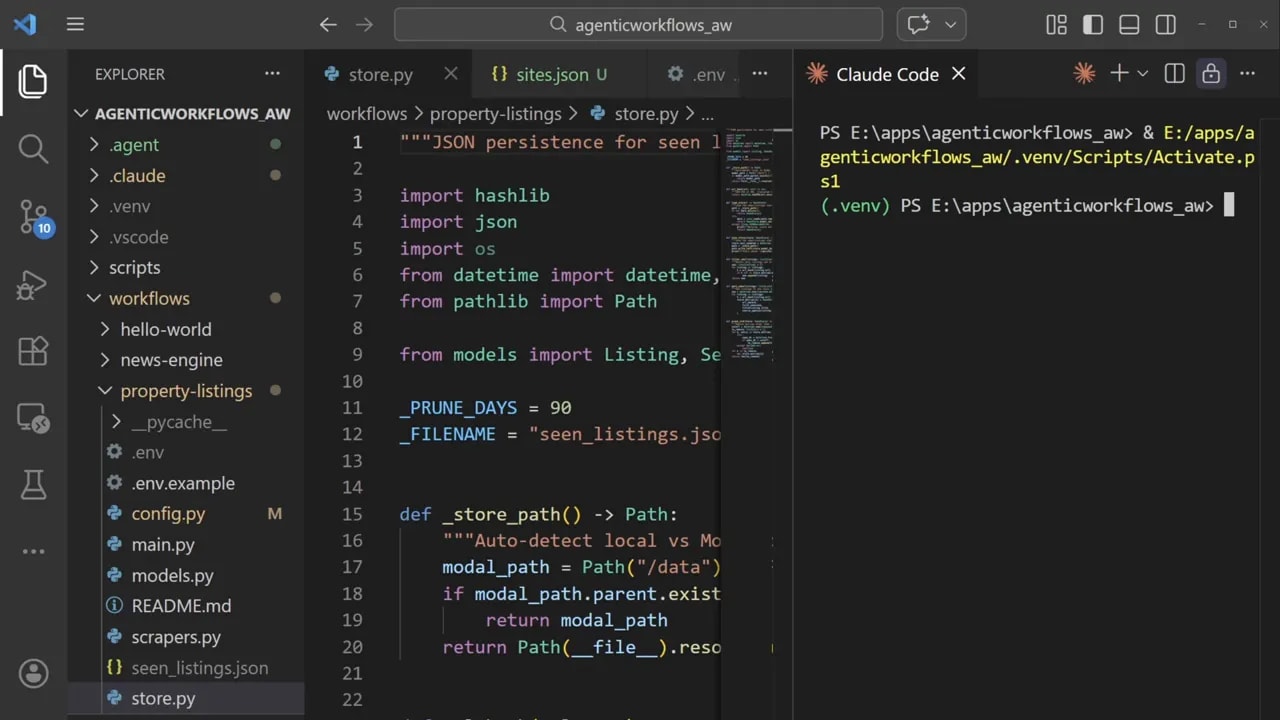
I use both. I’ll teach Claude a skill using a higher-capability model like Opus, then have a cheaper model like Sonnet or Haiku run the same skill for routine executions. Claude Code remains best for building production-grade apps and complex workflows. Cowork is ideal for ad hoc jobs, file-based automation, and browser-driven tasks.
Limitations you should know
Cowork is powerful, but it has trade-offs.
- Browser automation can be slow. Expect multi-minute runs for complex UI flows. Plan accordingly.
- Some technical steps still require comfort with integrations. Using a custom MCP connector is usually straightforward, but it may be beyond some non-technical users.
- Subscription tier required. Cowork is available only on Pro and Max plans, and heavy usage will increase your monthly cost.
- Research preview. You might encounter bugs or rough edges. I ran into an issue saving a skill on the Windows build and used a simple workaround.
- Fact checking remains essential. Claude does a good job synthesizing data, but always verify technical claims and benchmarks before sharing them in professional deliverables.
Practical examples I built
I’ll walk through four real tasks I automated with Cowork. Each example shows how I framed the prompt, what I asked Cowork to do, and the results I got.
1) Invoice PDFs → Excel (OCR + file moving)
Problem: I had a messy folder full of invoices. I needed a clean Excel sheet with structured fields and wanted processed invoices moved to a “processed” folder.
What I asked Cowork to do:
- Open the invoices folder.
- Extract key fields from each PDF and populate an Excel file in the same folder.
- If a PDF was scanned, use OCR to read it.
- When finished with a file, move it to the processed folder.
- Leave notes in the Excel notes column if a field couldn’t be extracted.
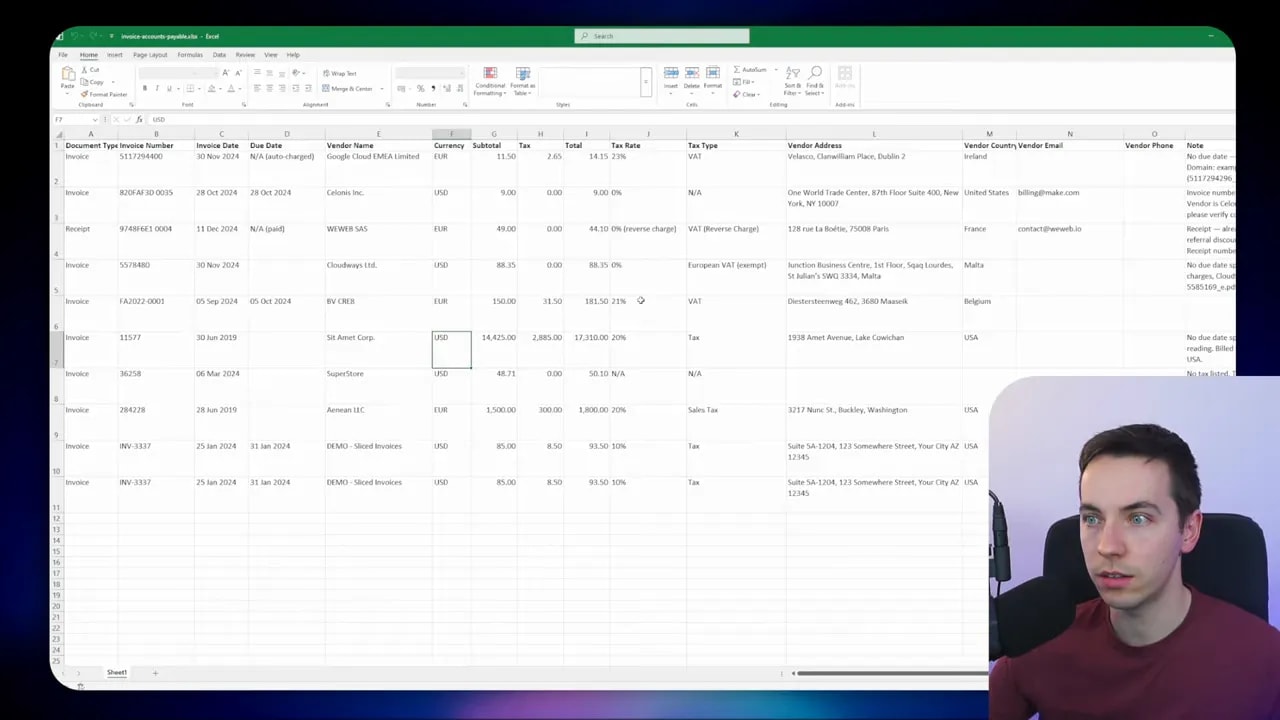
Outcome: Cowork extracted machine-readable PDFs and used OCR on scanned ones. It populated the Excel preview in the app and opened the file in Excel when I requested it. It also moved all processed files into the processed folder. This saved me hours of manual data entry.
2) Connectors + Skills: ClickUp ticket research and update
Problem: I wanted to fetch the most recent task from a ClickUp support list, do some web research about token usage differences for two frameworks, and then append findings to the ClickUp task as a comment.
How I set it up:
- Opened Cowork and added ClickUp as a connector through the connectors menu.
- Asked Claude to find the most recent task on the support list.
- Requested research on token management and usage for two frameworks and asked Claude to add a comment to the ClickUp task.
Outcome: Cowork successfully connected to ClickUp, discovered the correct list ID after a couple of tries, pulled the most recent task, performed web research, and added a comment on the task containing the findings. The automation saved the manual work of switching between apps and copying research notes.

3) Research → PowerPoint deck (brand guidelines applied)
Problem: I needed a medium-granularity presentation comparing two models across coding performance, price, and practical experience from developer forums.
What I asked Claude to do:
- Search official sources and Reddit for sentiment and anecdotes.
- Create an inverted-pyramid PowerPoint: top-level summary first, then progressively finer detail.
- Follow brand guidelines from a supplied website for colors and typography.
- Store the finished deck on my computer and preview it.
Outcome: The system built an upfront plan, iterated through research phases, asked permission to access my website for brand guidelines, and then generated the deck. The design was serviceable, and the structure followed the inverted-pyramid instruction. I ran a quick QA and found a small benchmark issue that needed correction. That shows the importance of verification for technical content.

4) Folder deep research → Internal Q4 report
Problem: I had a folder with meeting transcripts, documents, and a support ticket export for a large client. I needed an internal Q4 review with recommendations.
What I asked Cowork to do:
- Analyze all documents and transcripts in the folder.
- Aggregate support ticket data and strip out references to other clients.
- Produce a nine-page Word report with executive summary, goals, incidents, outcomes, and recommendations.
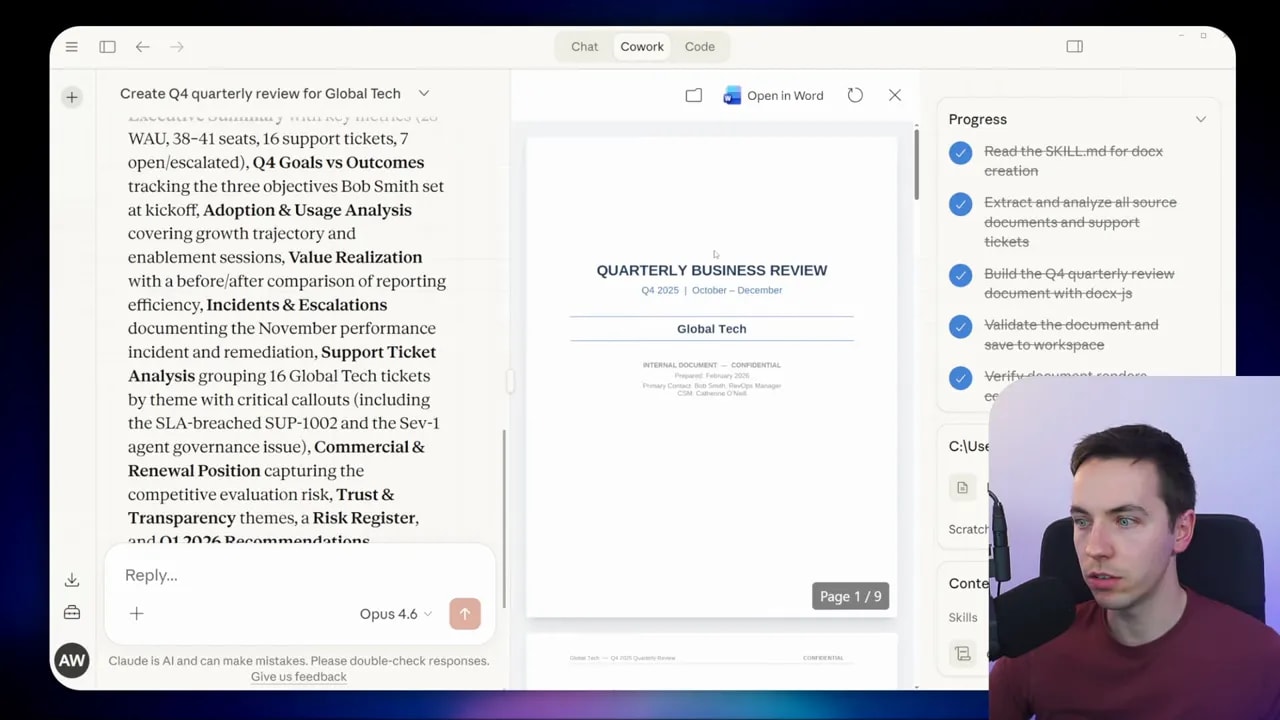
Outcome: Cowork used the built-in docx skill, asked clarifying questions about whether to include recommendations, and then produced a polished nine-page document. It aggregated ticket data and filtered out unrelated client information. The result was a strong first draft that would need editing and fact checks before distribution.
Skills: how they work and best practices
Skills are the glue for repeatable workflows. Each skill is a markdown file describing triggers, inputs, and behavior. When Cowork receives a prompt, it holds a list of available skills at a high level. When a task requires a specific capability, Cowork loads the correct skill file and applies the detailed instructions.
Best practices I use:
- Keep skills focused. One skill per task type reduces unexpected behavior.
- Include examples and edge-case handling. Add sample inputs and failure modes so the skill can act when data is missing.
- Store sensitive credentials separately. Skills should reference connectors rather than embedding raw keys.
- Version skills. Save iterations with timestamps so you can roll back if needed.
- Test on a small dataset first. Run the skill on a couple of files before scaling up.
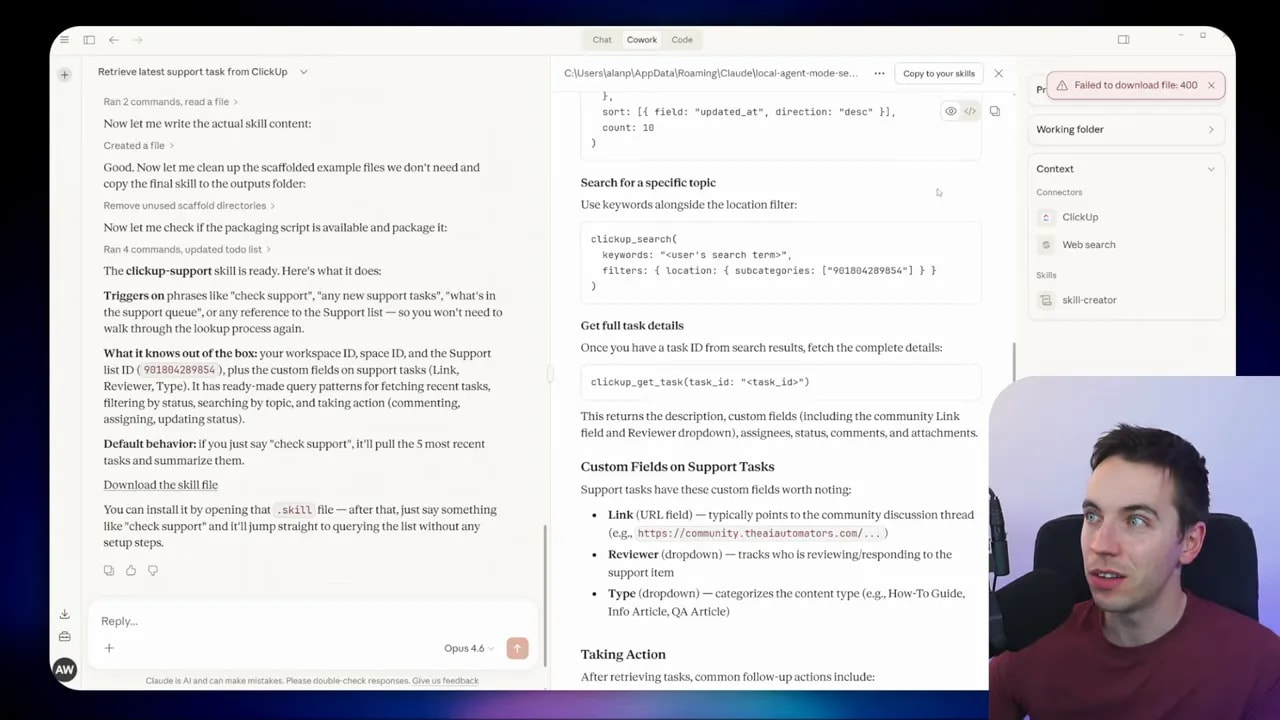
If you hit an issue saving a skill from the interface, a reliable workaround is to copy the skill content into a local file as skill.md and upload it through the skills manager. I used that exact approach on the Windows build when direct download failed.
Browser automation: speed and model choices
Browser-based tasks are powerful but can take time. Each interaction is effectively an automated human action. That means pages load, elements render, and the AI decides what to click. That decision loop introduces latency.
Tips to reduce runtime:
- Build site-specific navigation skills. Teach Cowork once how to find a specific element, then reuse that skill.
- Use a high-capability model to create the skill and a cheaper model to execute it. I often create navigation skills with Opus and then run them with Sonnet or Haiku for routine tasks.
- Limit the scope of browser runs. Restrict the number of pages or interactions per job so you avoid long single runs.
Security and permissions
Giving a tool access to folders, a browser, and external services carries risk. Use the principle of least privilege. Grant access only to the folder or scope needed for the task. Avoid giving broad system-level access where a subfolder will do.
For connectors, check what permissions the connector requests before you approve. If you need to connect to a sensitive system, consider provisioning a limited service account that only has the permissions required for the automation.
Keep audit and review in your process. Have the system log which files it touched and what external actions it performed. That makes it easier to verify results and troubleshoot problems later.
How Cowork fits with other automation tools
Cowork fills a specific niche: file-based work, human-like browser automation, and quick ad hoc workflows that benefit from agentic planning. Other tools still make sense alongside it.
- Claude Code: Use it for building production apps and complex agent harnesses. Teach skills and prototypes there if you plan to scale into an app.
- n8n, Zapier, Make: These are great for deterministic, scheduled automations with proven connectors and human-in-the-loop steps. They still excel at reliable background automations that need minimal oversight.
- Cowork: Use it where tasks are exploratory, require reading varied file types, or need browser-level interactions that other tools can’t cover easily.
Prompt and workflow templates I used
Below are real prompts I used as starting points. They show how to structure instructions so Cowork can act effectively. Copy them and adapt them to your workflows.
Extract invoice data and populate Excel:
- Open the "invoices" folder.
- For each PDF, extract the following fields: Invoice Date, Invoice Number, Vendor, Total Amount, Currency, Line Items (if present), and Notes.
- Populate the Excel file named "invoices.xlsx" in this folder with those fields.
- If a PDF is not machine readable, use OCR and note any uncertainties in the Notes column.
- When finished with a PDF, move it to the "processed" folder.
ClickUp research and update:
- Connect to ClickUp workspace: [workspace ID].
- Retrieve the most recent task from the "support" list.
- Search the web and select official sources plus at least three Reddit threads for sentiment on token management differences between Framework A and Framework B.
- Summarize findings in 3-5 bullet points and add them as a comment on the ClickUp task.
Research -> PowerPoint (inverted pyramid):
- Compare Model X vs Model Y for coding performance, latency, and price.
- Use official docs and developer forums for sentiment.
- Create a PowerPoint with the following structure:
  1. Title slide
  2. Executive summary (top-level conclusion)
  3. Key benchmarks (high level)
  4. Deep dive into coding performance
  5. Pricing and cost trade-offs
  6. Community sentiment and anecdotes
  7. Recommendations
- Apply branding from [URL] and save the file to the working folder.
Tips for faster and cheaper runs
- Build skills up front. Reusable skills reduce trial-and-error during runtime.
- Mix models strategically. Use Opus to create robust skills. Use Sonnet or Haiku for repeated executions to save credits.
- Restrict working folders. Smaller folders mean faster discovery and fewer files to scan.
- Break large jobs into chunks. Instead of a single run over thousands of files, batch them into smaller jobs and run them overnight.
Common issues and simple workarounds
You may hit a few rough edges. I ran into a problem saving a skill from Cowork on Windows. The interface failed to download the skill file. My workaround steps were:
- Copy the skill content displayed in Cowork and paste it into Notepad.
- Save it as
skill.mdin a working folder. - Open the skills manager in Cowork (three dots menu → View all skills → Add).
- Upload the
skill.mdfile. Restart Cowork if needed.
That fixed the issue immediately. Keep local copies of skills as a best practice so you can re-upload them if the app hiccups.
How I vet outputs before using them professionally
Automated drafts are a starting point. I always run a verification pass before sharing anything externally. That includes:
- Checking numerical benchmarks against original sources.
- Manually opening a sample of processed files to confirm extraction accuracy.
- Reviewing visual design for brand alignment and adjusting templates as needed.
- Confirming any customer-specific data is properly redacted or filtered.
Those checks take a little time but greatly reduce the risk of mistakes slipping into final documents.
What to expect as the tool matures
Cowork already shows how useful a well-designed front end can be when combined with agentic orchestration. Expect improvements like faster browser automation, more connectors, and better skill management. Open-source alternatives will likely appear that copy some of this functionality. For now, the easiest path to production is to prototype in Cowork and then, where needed, move mission-critical flows into Claude Code or another platform with stronger deployment controls.
Final assessment
Claude Cowork makes real work automatable for people who don’t want to build agent harnesses. I created automations that saved time on data entry, enriched task trackers with research, produced presentations using brand guidelines, and generated consolidated reports from client folders. The tool blends accessibility with powerful agent features. Expect to spend some time validating outputs and tuning skills, but the payoff can be substantial.
Cowork shines for ad hoc, research-heavy, or browser-driven tasks. For reliable background automations, use traditional workflow tools in parallel. Use skills to compress complexity into reusable units. Factor in subscription cost and permission boundaries. With these precautions, Cowork can replace a surprising amount of manual work and speed up many common workflows.

